



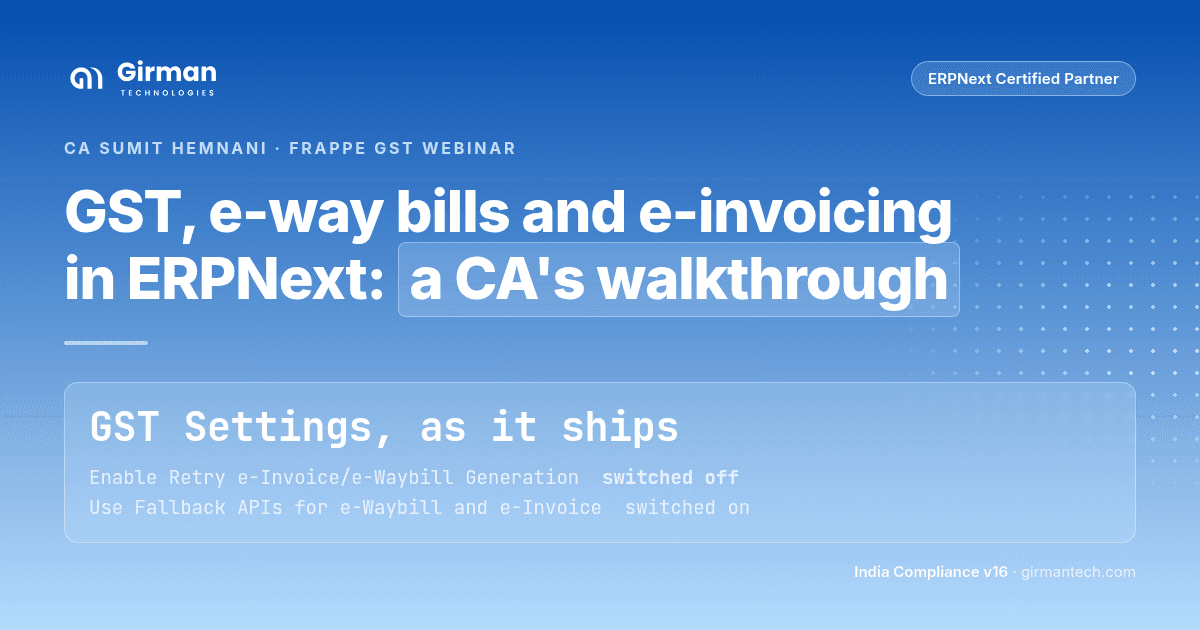
ERPNext can generate the e-way bill and the e-invoice for a sales invoice the moment you submit it. No one logs in to a government portal for each invoice, and no one retypes it. Whether that works depends on seven setup steps, and a single wrong ledger is enough to stop it.
I walked through the whole setup live for Frappe's public webinar series in March 2026, on a commodity trading company in Nagpur that sells groundnuts and sago. This is the written version: the same steps, checked against the India Compliance source code, plus the two places where the live demo failed and what to do about them.
Frappe public webinar, 4 March 2026. The setup starts at 8:23, the first live invoice at 26:29, and the e-invoice at 29:43.
Before You Start
You need the India Compliance app installed and an India Compliance account. The account is what lets ERPNext talk to the e-way bill and e-invoice portals. New accounts get a free allowance of API credits, and generating documents uses them up.
The e-invoice settings stay hidden until API features are switched on. If you open GST Settings and find no e-invoice section, that is why; it does not mean ERPNext lacks the feature.
Step 1: One GST Ledger per Tax Head
India Compliance creates your GST accounts for you. Input tax credit sits under assets, and output tax sits under Duties and Taxes in liabilities. Open each one and check two fields: Account Type must be Tax, and Tax Rate must be 0. The rate belongs on the item, through its tax template, not on the ledger.
Do not create one ledger per rate, such as CGST 2.5% and CGST 9%. The reason is in GST Settings. Its GST Accounts table takes one row per account type for each company (Input, Output, Purchase Reverse Charge, Sales Reverse Charge and Output Refund), and each row names exactly one CGST, one SGST, one IGST and one cess account. Add a second Output row for the same company and it will not save:
Row #2: Account Type Output appears multiple times for <your company>
So rate-wise ledgers have nowhere to go. Entries against them still post, but the e-way bill, the e-invoice and the HSN-wise summary in GSTR-1 are all built on that one mapping, and they stop working (25:29 in the webinar). Undoing it later means moving balances across ledgers, so get it right before the first invoice.
Step 2: Review the Item Tax Templates
India Compliance also creates the item tax templates: GST 5%, GST 12%, GST 18% and GST 28%. Each one splits the rate for you. In GST 5%, SGST and CGST carry 2.5 each for sales inside your state and IGST carries 5 for sales outside it. Refund rows carry a negative rate and reverse charge input rows a positive one.
You do not need to build these, only read them. One wrong row breaks reconciliation later.
GST 2.0 changed the slabs from 22 September 2025, and the templates have not caught up: version 16 still ships 12% and 28% and has no 40% template. If you sell goods that moved to 40%, add that template yourself. When a rate changes, the Valid From date on the item's tax row lets you set the new rate before the date it takes effect.
Step 3: Items with the Right HSN Code and One Template
Every item needs a correct code in HSN/SAC. You can search it by description; typing "sago" finds the starch heading it belongs to. GSTR-1 now needs an HSN-wise summary, so a wrong code surfaces at filing time, when it is slowest to fix.
In the item's Taxes table, keep a single row with the template for its rate, and leave Tax Category empty on that row. If the item came with separate in-state and out-state rows, delete them. You want the invoice to decide between CGST plus SGST and IGST, and Step 4 is what lets it.
Step 4: Tell the Tax Categories Where You Are
India Compliance creates five tax categories: In-State, Out-State, Reverse Charge In-State, Reverse Charge Out-State and Registered Composition. On each of the first four, set the source state to the state your company is registered in. Tick Is Inter State on the two Out-State categories, and Is Reverse Charge on the two reverse charge ones.
ERPNext then compares your state with the customer's and applies CGST and SGST or IGST without anyone choosing. Registered Composition works differently, and if your company is under the composition scheme, it is worth a separate conversation.
Step 5: Pick Only the GST Settings You Need
GST Settings has a long list of options. Start with the fewest that apply to you and add more later, because each one you switch on adds a step to every invoice. For automatic e-way bills and e-invoices you need:
- Enable API Features.
- Enable Retry e-Invoice/e-Waybill Generation. This ships switched off. Turn it on. The government portals fail more often than you would expect, and a retry usually goes through on the second or third attempt.
- Use Fallback APIs for e-Waybill and e-Invoice. This ships switched on. Leave it on.
- Default Threshold Value for e-Waybill Generation. It defaults to ₹50,000. Some states set a different limit for movement within the state; the e-Waybill Threshold for Intrastate table takes those per state.
- Enable e-Invoicing and Generate e-Waybill with e-Invoice, if your turnover puts you above the e-invoice threshold. Our overview of GST, TDS and e-invoicing in ERPNext gives the threshold and the notification behind it.
Step 6: Connect the Government Portals
Log in to the e-way bill portal and go to Registration, then For GSP. Add a new GSP, choose Adaequare Info Private Limited (the provider India Compliance works through), and create an API username and password.
Back in ERPNext, add them in GST Settings under Credentials, with the service set to e-Waybill / e-Invoice. The e-way bill and e-invoice portals share credentials, so this one entry covers both. Return filing uses its own row, with the service set to Returns.
Step 7: Get the Addresses and GSTINs Right
Check your company's address and every customer's address, especially the PIN code, and enter each GSTIN. When you enter a GSTIN, ERPNext fetches its registration status (Registered Regular, Composition, SEZ and so on) and the PAN from the GST portal.
This step looks clerical, and it is where e-way bills fail most. A wrong or missing PIN code stops the e-way bill, and it also stops the distance calculation in the next section.
Raising the Invoice
In the webinar I raised two invoices. The first sold 1,000 kg of groundnuts to a customer in Madhya Pradesh for ₹92,000. That is above the ₹50,000 threshold and out of state, so ERPNext applied IGST on its own. The second sold sago inside Maharashtra and got CGST and SGST.
Two fields on the invoice decide whether the e-way bill goes through:
- Transporter details. Enter the transporter's GSTIN or the vehicle number. With neither, the e-way bill fails.
- Distance (in km). Enter
0. The field's own description says to "set as zero" to take the distance from the e-way bill portal, which works it out from the two PIN codes.
On submission, a successful e-invoice puts the IRN and a signed QR code on the invoice, and the e-way bill number prints on it as well.
One Honest Limitation
The automation is only as reliable as the government portals, and both live demos hit a failure. The first e-way bill was rejected because I had typed a dummy vehicle number, and it went through after I corrected the number and regenerated it from the invoice. On the second invoice the e-invoice was generated and the e-way bill call failed.
That second case is the one that costs you. ERPNext lets you submit the invoice with its e-invoice even when the e-way bill fails, and the goods must not move until the e-way bill exists. The retry setting that recovers most of these failures ships switched off.
Turn retry on before go-live, leave the fallback APIs on, and have one person check for invoices without an e-way bill every day before dispatch. Every attempt is recorded in the e-Waybill Log and the e-Invoice Log, so the check takes minutes.
Frequently Asked Questions
Does ERPNext generate e-way bills and e-invoices automatically? Yes, through the free India Compliance app. Once API features and the portal credentials are set up, submitting a sales invoice can generate the e-invoice (IRN and signed QR code) and the e-way bill in one step. The API calls use India Compliance credits after the free allowance runs out.
Why does ERPNext say "Account Type appears multiple times" in GST Settings? GST Settings allows one GST Accounts row per account type for each company, with one CGST, SGST, IGST and cess account in each. The error means a second row for the same type was added, usually to map rate-wise ledgers. Keep one ledger per tax head with a tax rate of zero, and set rates on the item tax templates instead.
Do I need separate credentials for e-invoicing and e-way bills? No. The two portals share credentials, so one GSP user created on the e-way bill portal, with Adaequare Info Private Limited as the GSP, covers both. Add it once in GST Settings with the service e-Waybill / e-Invoice.
What distance should I enter for an e-way bill in ERPNext? Enter zero. ERPNext then takes the distance from the e-way bill portal, which calculates it from the PIN codes of the two addresses. This only works if both addresses carry the correct PIN code.
Does ERPNext handle the GST 2.0 rate changes? Partly. India Compliance still creates GST 5%, 12%, 18% and 28% templates and has no 40% template, so a business selling goods taxed at 40% must add one. The Valid From date on an item's tax row lets you schedule a rate change in advance.