




Introduction
• Managing ERPNext inventory management effectively is about more than knowing how much stock is available today. Businesses also need to know when to replenish stock, how much to replenish, and where that stock should come from.
• If these decisions are handled manually, businesses can easily end up with stockouts, excess inventory, delayed production, or unnecessary purchases. Handling replenishment manually on spreadsheets leads to stockouts, excess carrying costs delayed production, unnecessary purchases or delayed purchasing cycles.
• ERPNext addresses this challenge with its Reorder Level and Auto Reorder functionality. Businesses can define reorder levels and quantities for items, monitor their inventory position, and automatically generate Material Requests when replenishment is required.
• ERPNext's auto re-order feature connects real-time stock levels directly with purchase workflows, keeping inventory flowing without requiring constant manual oversight.
• In this guide, we'll look at how ERPNext Auto Reorder works, what reorder levels and reorder quantities mean, and how to configure the feature correctly.
Industry Example (Unicorn Electronics - Mobile Phone Distributor):
• Unicorn Electronics distributes consumer electronics, including popular smartphones like the Apple iPhone 17 PRO, across regional fulfilment hubs.
• High sales velocity across retail channels makes manual stock tracking risky, often leading to missed sales when stock runs low.
• By configuring ERPNext's Auto Re-order feature for the Apple iPhone 17 PRO, Unicorn Electronics automates warehouse replenishment so local stores stay stocked without staff constantly checking inventory counts.
Why Is the Auto Re-Order Feature Useful?
-
Prevents Costly Stockouts & Missed Sales: Automatically triggers replenishment well before fast-moving items like the iPhone 17 PRO run out on store shelves, protecting your revenue and customer trust.
-
Optimizes Working Capital & Holding Costs: Keeps your inventory buffer lean so cash flow isn't tied up in excess inventory, keeping warehouse storage fees under control.
-
Eliminates Manual Oversight & Human Error: Replaces spreadsheets and tribal knowledge with background automation that monitors thousands of SKUs across multiple warehouses 24/7.
-
Seamless P2P Integration: Auto generated Material Requests carry forward item details, quantities, and target warehouses directly into Request for Quotations (RFQs) and Purchase Orders (POs), cutting out repetitive data entry.
Understanding Reorder Mechanics
Reorder Level: When to reorder
The precise stock threshold that signals it is time to order more inventory before running out.
Calculating your threshold using the Reorder Point formula (ROP) ensures you order at the exact right moment.
Reorder Level Point = Safety Stock + (Average Daily Consumption × Lead Time).

Safety Stock
Minimum stock level to maintain as a buffer. Your emergency buffer that shields operations against unexpected supplier delays, transit issues, or sudden demand spikes.
Tip: To determine accurate safety stock numbers, use the built in Itemwise Recommended Reorder Level report to analyze historical consumption and lead times
Re-order Qty: How much to reorder.
Defines the fixed batch size or order quantity to request whenever stock drops below the threshold.
.png&w=1200&q=75)
Step by Step Setup: Configuring Auto Re-Order in ERPNext
Global System Enablement
- Navigate to Stock Settings: Go to Stock > Setup > Stock Settings.
- Enable Feature: Check the box for "Raise Material Request when stock reaches Re-Order level".
Item Master Setup
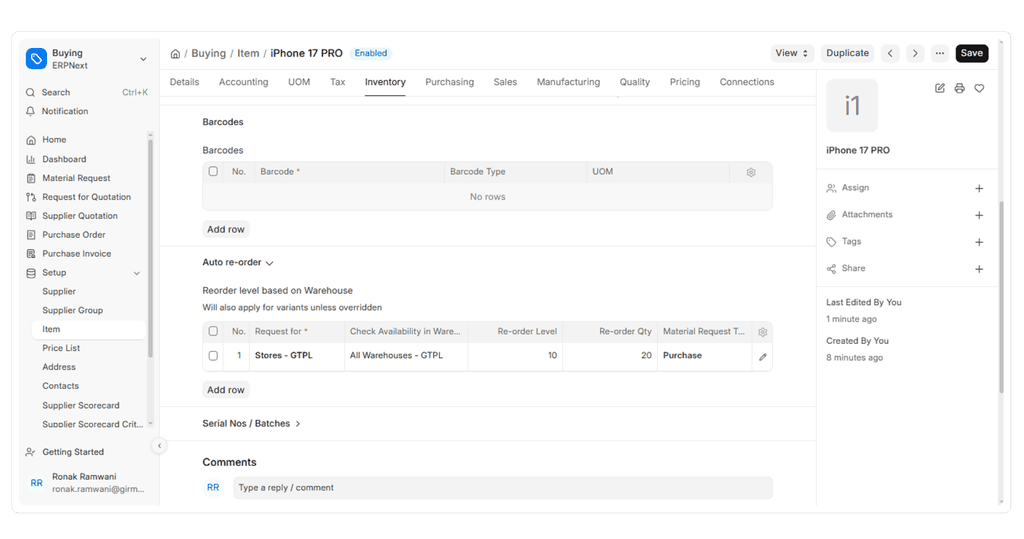
- Go to Stock Item Master > Select your Item > Expand the Auto Re-Order section
- Field Configuration:
-
Check Availability in Warehouse: Select the warehouse whose stock counts trigger the check (Supports multi-warehouse auto reorder by allowing you to monitor a central parent warehouse while replenishing a specific retail branch)
-
Request For: Choose the specific destination warehouse that needs the new stock.
-
Re-order Level: Enter the minimum warehouse stock threshold that will trigger the system to take action.
-
Re-order Qty: How much to reorder
-
Material Request Type: What replenishment action to take: Purchase/Material Transfer/Manufacture.
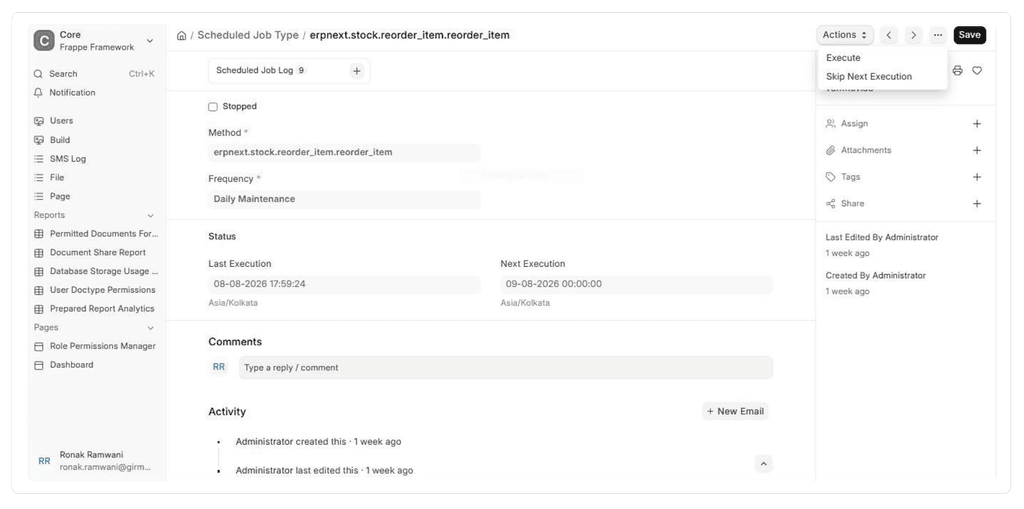
SCHEDULER JOB: How the Automation Works Behind the Scenes.
-
ERPNext uses background ERPNext SCHEDULED JOBS via the Frappe Framework Scheduler to run stock checks daily at midnight.
-
Event Triggers: Everyday movements like submitting a Delivery Note, Stock Entry, or Purchase Return naturally lower your stock levels.
-
Background Scheduler Logic: To prevent performance lags during transaction entry, ERPNext delegates reorder checks to background jobs via the Frappe Framework Scheduler.
-
Execution Schedule: The background job (erpnext.stock.reorder_item.reorder_item) runs automatically once every day at 12:00 AM (Midnight) to scan stock levels.
-
Manual Trigger Trick: You can bypass waiting for the midnight job by navigating to Scheduled Job Type for erpnext.stock.reorder_item.reorder_item and clicking Execute to trigger the check on demand.
Connecting Auto Re-Order to the Procure-to-Pay (P2P) Lifecycle
End-to-End Workflow Integration:
-
Once Item (iPhone 17 PRO) drops below 10 units, ERPNext automatically generates a draft Material Request tagged "Auto Created (Reorder)".
-
Automatically created Material Requests feed seamlessly into Request for Quotations (RFQs) or direct Purchase Orders (POs).
-
Issued Purchase Orders connect down to Purchase Receipts (GRN) and Purchase Invoices, locking into ERPNext 3-Way Matching controls automatically.
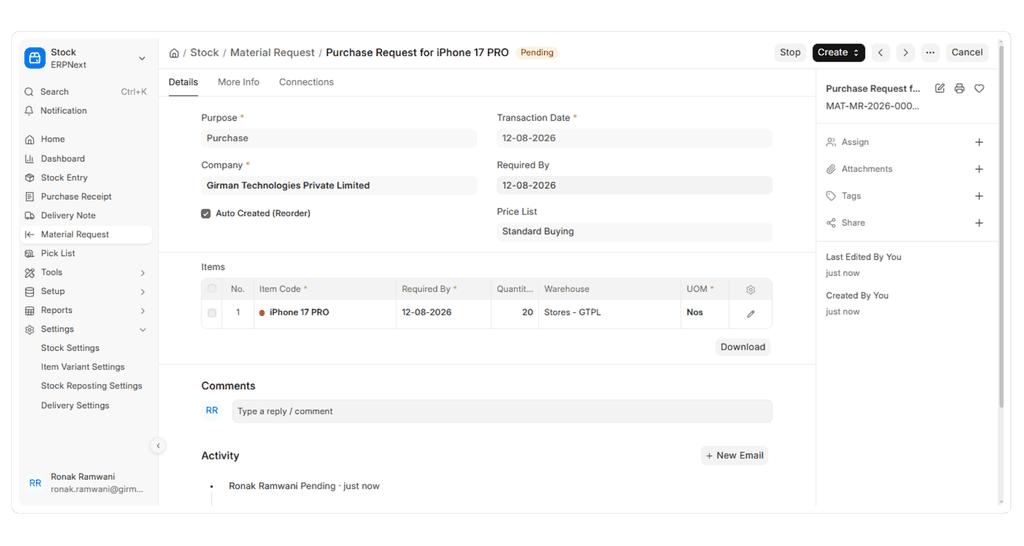
- Manual Trigger Trick: You can bypass waiting for the midnight job by navigating to Scheduled Job Type for erpnext.stock.reorder_item.reorder_item and clicking Execute to trigger the check on demand.
Automated replenishment takes the guesswork out of procurement. Whether you manage a single store or a multi-warehouse network, our team can help you configure and automate ERPNext to fit your supply chain needs.
Related Blog: [Read What Is 3-Way Matching in Accounts Payable? How ERPNext Automates and Generates Reports in One Click? to learn how ERPNext simplifies invoice verification and reporting.] (https://www.girmantech.com/blog/erpnext-3-way-matching-workflow-automation-reports)