


Purchase order approval is the control that decides who may commit the company's money, and up to what value, before the order reaches the supplier rather than after the invoice arrives. SAP calls it an approval matrix, NetSuite approval routing; ERPNext gives you the parts and leaves the policy to you.
Approval reads as a policy problem. It is a plumbing problem: easy to write down, hard to make impossible to route around.
This post builds a two-tier workflow in ERPNext v16, walks an order through it, and shows the three configurations that quietly undo it.
Why Purchase Approval Breaks Down at Scale
Four failure modes, in roughly the order a growing company meets them.
Rogue spending. A branch buyer commits to a supplier with no commercial review. What stops this is not the workflow. It is role-based permission on submit. Hold that thought.
Latency. Route everything through the finance director and a "director signs above ₹5 lakh" policy starts producing ₹4,90,000 orders: three to one supplier in a week for one ₹14.7 lakh job. Nobody was being devious; the single order would have taken four days. Threshold conditions are the fix.
Alterations after approval. A manager approves 10 units at ₹5,000; someone edits the line to 20. ERPNext offers Only Allow Edit For for exactly this, and it does less than it appears to.
Downstream damage. Unapproved orders reach the warehouse. What the warehouse checks is whether the order is submitted, not what the workflow calls it.
So: one threshold, two approving roles. Up to ₹50,000 the Purchase Manager clears the order; above that it escalates to the Accounts Manager for budget authorisation before release. That is the workflow the next five steps build.
Step 1: Roles
Purchase User drafts the order, Purchase Manager reviews it, Accounts Manager clears the high-value ones.
One trap: neither manager role can read Address in a stock install, and a Purchase Order draws the supplier's address as it saves, so an approver holding only a manager role gets a permission error with no explanation. Assign the manager roles alongside Purchase User, not instead.
Step 2: Create the Workflow
Settings > Customization > Workflow > New. Name it, set Document Type to Purchase Order and Workflow State Field to workflow_state, then tick Is Active. One active workflow per document type is the limit.
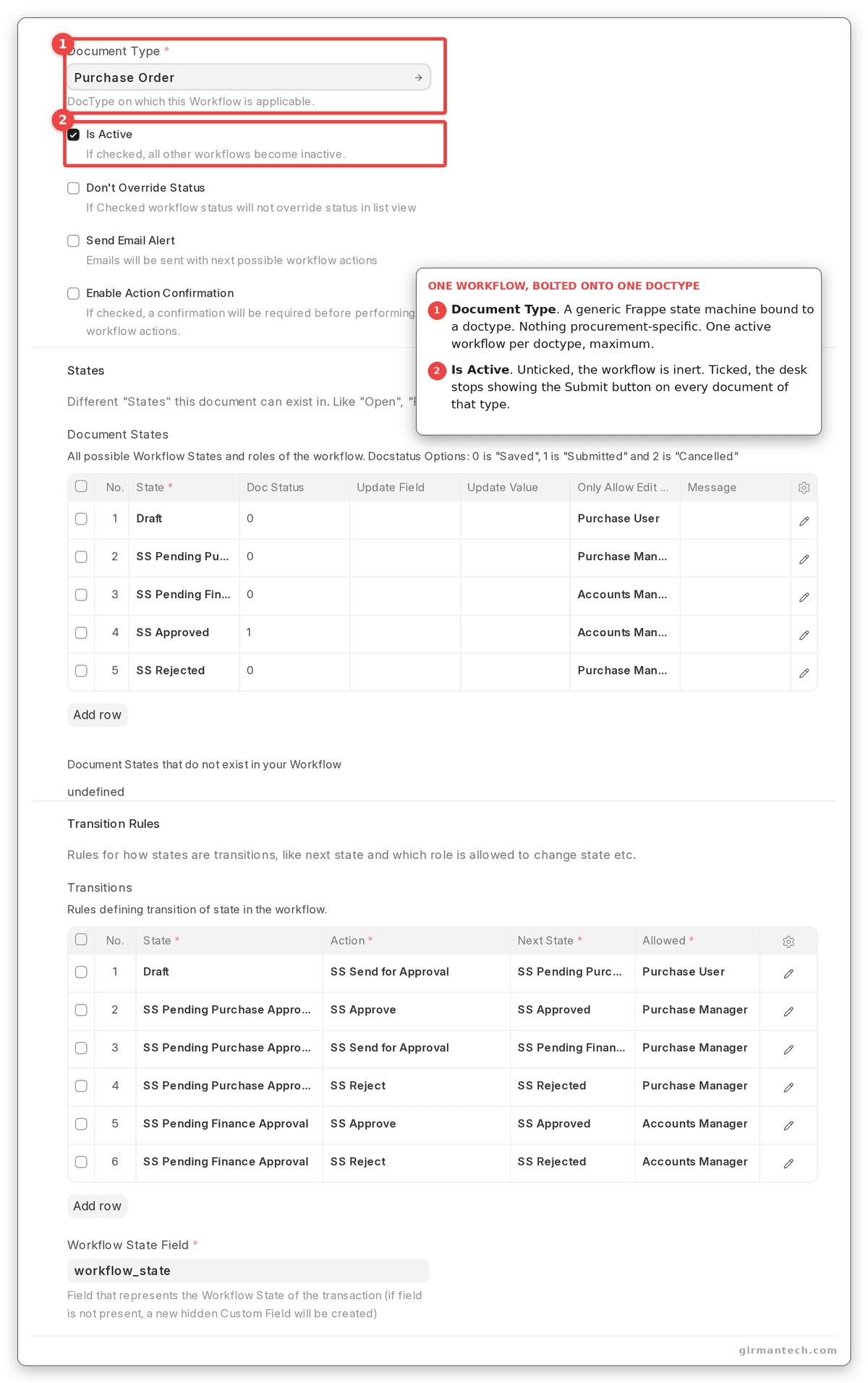
The Workflow form for Purchase Order, with Document Type, Workflow State Field and Is Active set, above the States table.
Step 3: States, and the One Setting That Is Not a Label
Each state carries a Doc Status of 0, 1 or 2. Everything else on this form is a name; this field changes what the document is. 0 is a draft. 1 is submitted, a real commitment against the supplier. 2 is cancelled. Marking a state 1 does not describe the order as submitted. It submits it.
| State | Doc Status | Only Allow Edit For | What it means |
|---|---|---|---|
| Draft | 0 | Purchase User | Created by the buyer, editable |
| Pending Purchase Approval | 0 | Purchase Manager | Under operational review |
| Pending Finance Approval | 0 | Accounts Manager | Escalated to finance |
| Approved | 1 | Accounts Manager | Submitted, a real commitment |
| Rejected | 0 | Purchase Manager | Refused, still a draft |
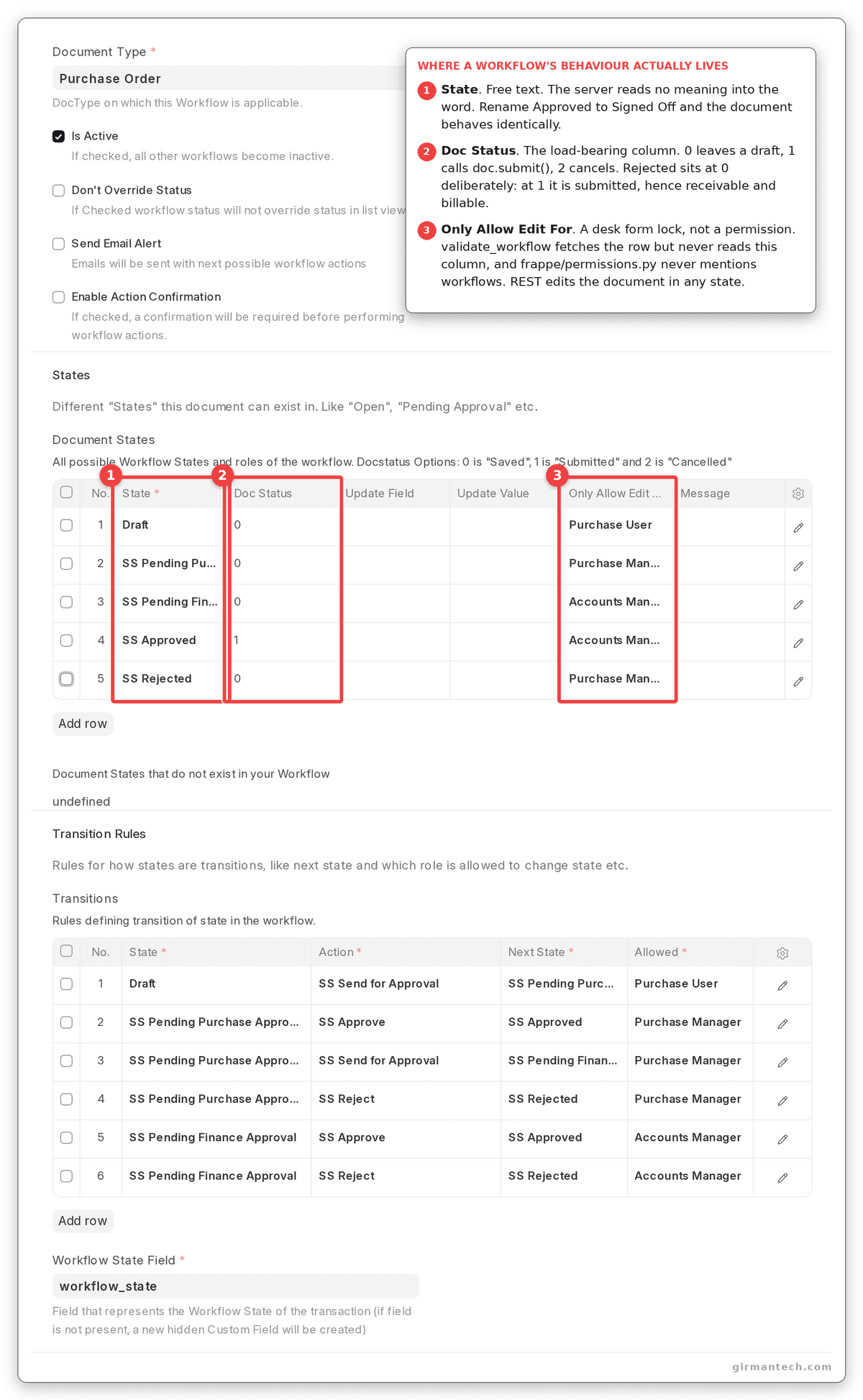
The States table with the Doc Status column readable: three states at 0, Approved at 1, Rejected at 0.
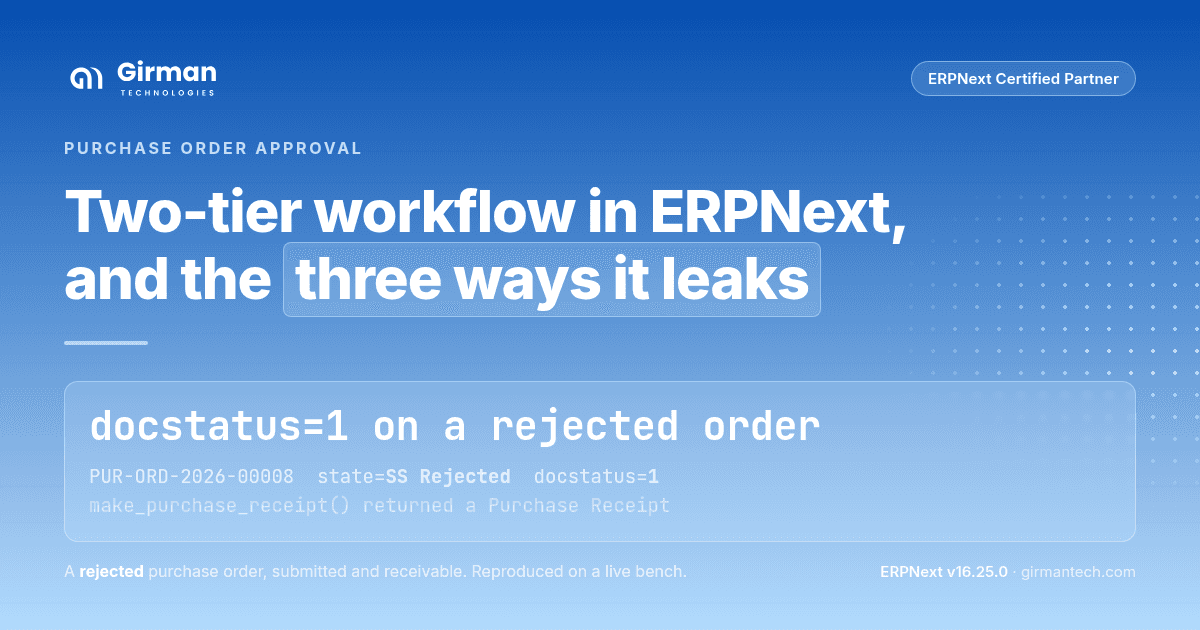
Rejected must not be Doc Status 1. It is the most common error in published ERPNext workflow tutorials, and it inverts the control: rejecting the order submits it. We built it that way deliberately and pushed an order through:
PUR-ORD-2026-00008  state=SS Rejected  docstatus=1  status=To Receive and Bill
make_purchase_receipt() returned a Purchase Receipt for SS-IMP-01 qty 1.0
The rejected order is now a live commitment: stock booked as on order, the Material Request closed, and the order sitting in the warehouse team's Get Items From → Purchase Order picker, receivable and invoiceable in full. Nothing downstream in ERPNext looks at the workflow state at all. The warehouse sees a submitted order and treats it as one.
Use Doc Status 0 for a rejection that happens before approval. 2 is for cancelling something already approved. ERPNext refuses it from anywhere else.
"Only Allow Edit For" greys out the form. It does not lock the document. The third column stops the wrong role editing the order on screen, and does nothing else. No other route into ERPNext checks it: an integration, a data import or a script edits the order in any state, whatever that column says. A signpost, not a lock.
Step 4: Transitions
Each row reads state → action → next state, restricted by Allowed to exactly one role (the field takes one role, not a list) and optionally gated by a Condition.
| State | Action | Next state | Allowed | Condition |
|---|---|---|---|---|
| Draft | Send for Approval | Pending Purchase Approval | Purchase User | - |
| Pending Purchase Approval | Approve | Approved | Purchase Manager | doc.grand_total < 50000 |
| Pending Purchase Approval | Send for Approval | Pending Finance Approval | Purchase Manager | doc.grand_total >= 50000 |
| Pending Purchase Approval | Reject | Rejected | Purchase Manager | - |
| Pending Finance Approval | Approve | Approved | Accounts Manager | - |
| Pending Finance Approval | Reject | Rejected | Accounts Manager | - |
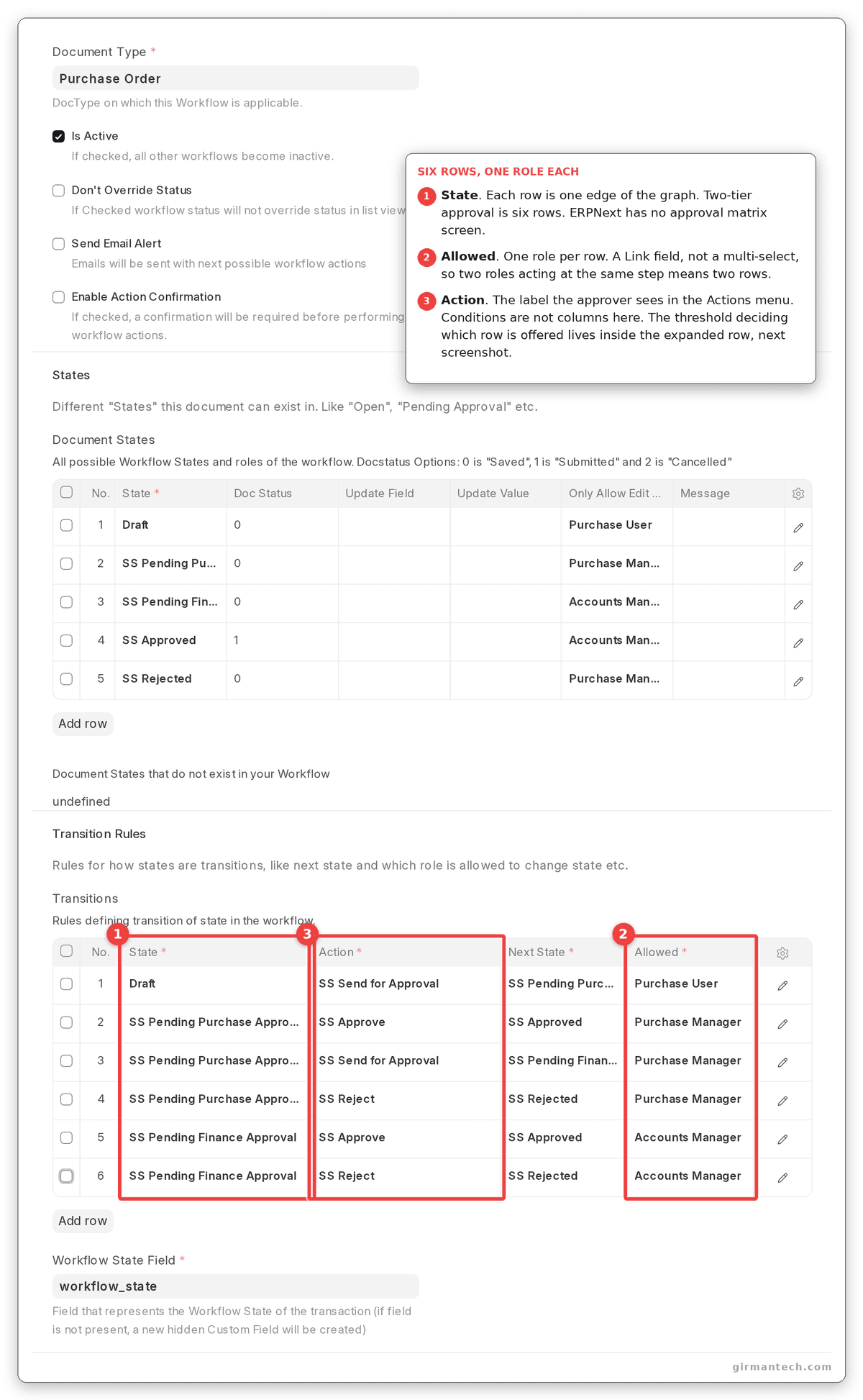
The Transitions table: six rows of state, action, next state and allowed role. Conditions are not columns in this grid. They live inside the expanded row.
A condition is one line tested against the order. doc.grand_total >= 50000 is the whole of ours. It can look something up elsewhere, like the balance left on a cost centre budget, and that is the ceiling. There is no approval-matrix screen and no rule builder anywhere in ERPNext. The rule is the line you type.
Write the thresholds so they meet. A condition that comes out false raises no error. The action is simply missing, and the approver gets no explanation. Write < 50000 and > 50000, and an order of exactly ₹50,000 has nowhere to go. All three values, past the manager:
grand_total= 49,999.00  manager is offered ['SS Approve', 'SS Reject']
grand_total= 50,000.00  manager is offered ['SS Reject']
grand_total= 50,001.00  manager is offered ['SS Send for Approval', 'SS Reject']
At the threshold the only thing anyone can do is reject the order. No warning, and no approval email either: the notification goes with the action. Use >= on one side, as the table above does.
ERPNext v16 will also draw all of this for you: a Workflow Builder button on the Workflow form. Far easier to check as a diagram than as two grids of rows. Still marked BETA, and still one role per transition.
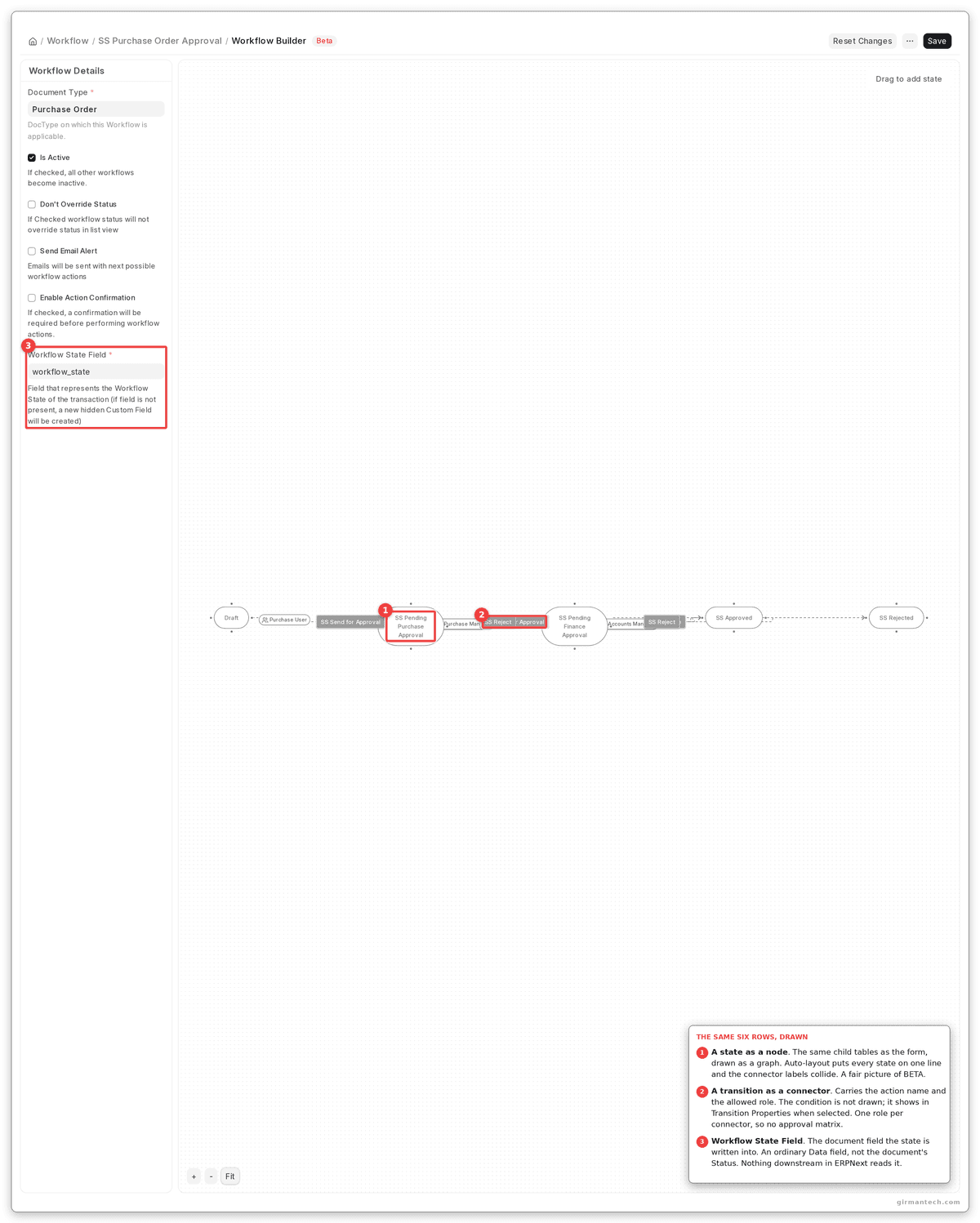
The two-tier workflow in Workflow Builder. The connectors carry the action and the allowed role; conditions are not drawn on the canvas.
Step 5: Turn off Self-Approval, Because It Is On
Allow Self Approval on each transition arrives ticked. Left alone, whoever raised the order can approve it, as long as they hold the approving role.
That check looks at who created the order and nothing else, so it misses a buyer who rewrote somebody else's order and then approved it. And Administrator passes regardless. Segregation of duties is opt-out here, one transition at a time, and nothing warns you it is off.
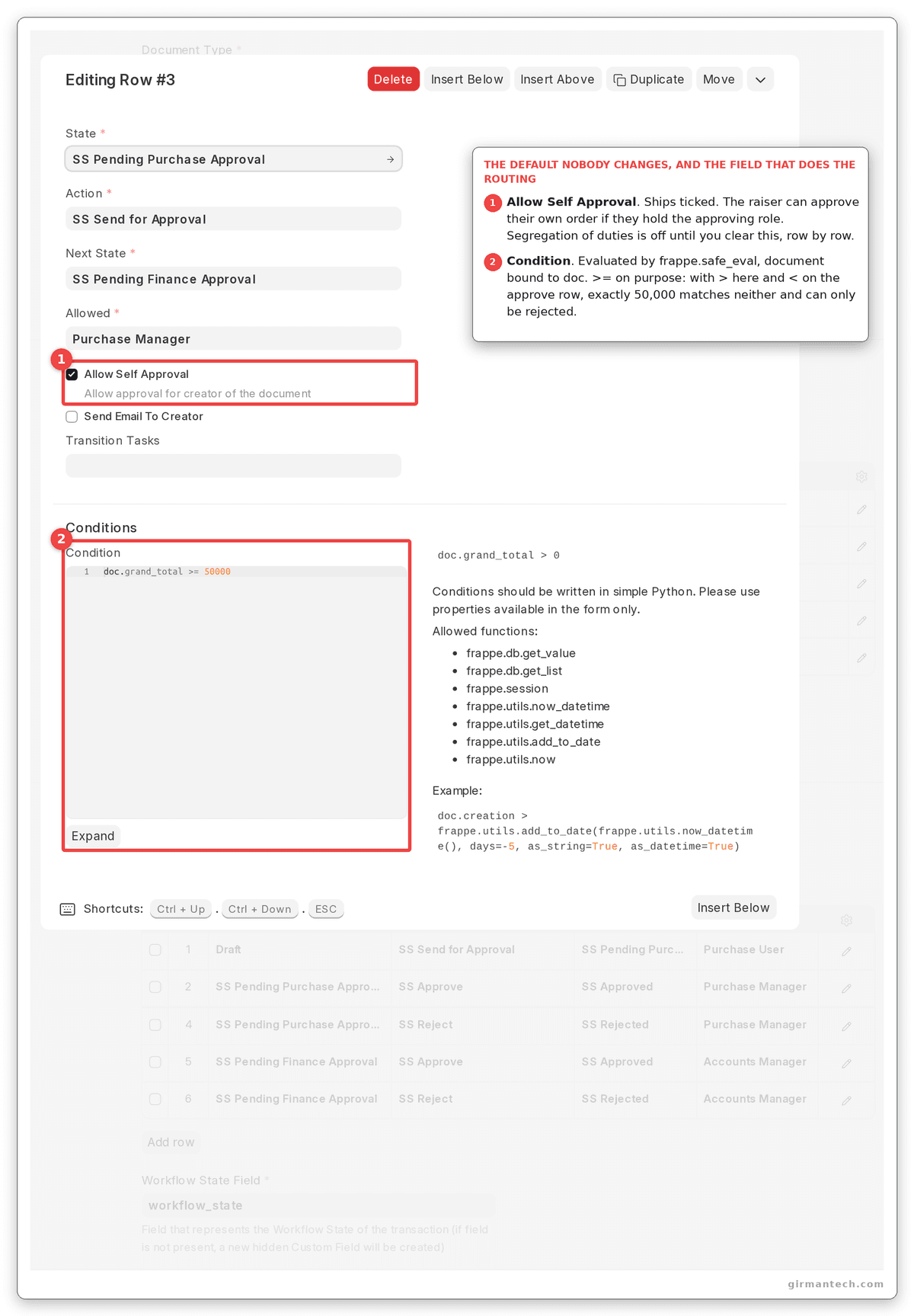
The escalation transition expanded, with Allow Self Approval ticked by default beside the Allowed role and the doc.grand_total >= 50000 condition.
Walking an ₹80,000 Order Through
A buyer raises an order for ₹80,000. Bench transcript:
created PUR-ORD-2026-00004  grand_total=80000.0  docstatus=0  state=Draft
buyer   is offered ['SS Send for Approval']
after   docstatus=0  state=SS Pending Purchase Approval
manager is offered ['SS Send for Approval', 'SS Reject']
after   docstatus=0  state=SS Pending Finance Approval
finance is offered ['SS Approve', 'SS Reject']
after   docstatus=1  state=SS Approved
The third line is the one worth noticing. The Purchase Manager is not offered Approve: ₹80,000 fails the under-₹50,000 condition, so the action is taken off the menu. The only move left is to escalate. The low-value path is not on screen at all. The last line is the order being submitted. It is a commitment from that moment.
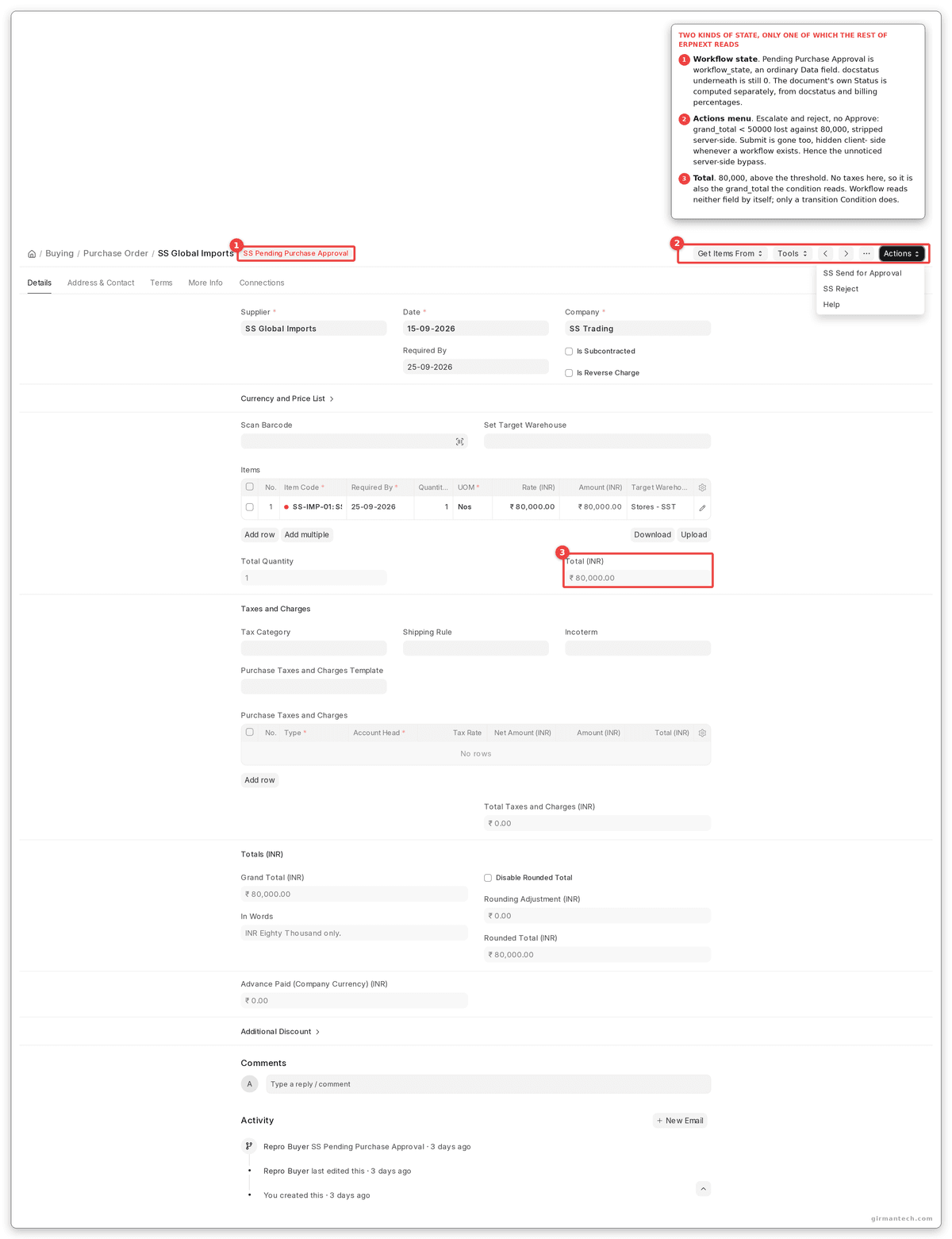
The order in Pending Purchase Approval with the Actions menu open: Send for Approval and Reject, and no Approve.
The Leak: Submit Does Not Go Through Your Workflow
ERPNext checks a transition only when the workflow state changes. Submitting the order directly does not change it, so there is nothing to check, and the order is moved to the first state in your table marked Doc Status 1, whichever that is. No role, no condition, no self-approval check, and nothing in the order's history to say the chain was skipped.
We raised a ₹100 order under the workflow above and submitted it as a user holding Purchase User and nothing else (not Administrator, and with no special permissions):
inserted       PUR-ORD-2026-00009  docstatus=0  state=Draft  grand_total=100.0
submitting as  repro-buyer@example.com  roles=['Purchase User']
after submit() docstatus=1  state=SS Approved
Neither pending state was visited. Neither approving role was consulted.
You will not meet this on screen: ERPNext hides the Submit button whenever a workflow exists. That is the browser's decision. Anything submitting without a browser goes straight past it: an integration, a script, a bulk action, a scheduled job, a data import.
Stop treating the workflow as the control. Remove submit permission on Purchase Order from every role meant to request rather than approve. Permissions then enforce what the workflow only describes.
The Other Approval System in the Same Product
ERPNext also ships Authorization Rule, which predates Workflow and still works. Set a transaction type, a Based On of Grand Total, a value and an approving role, and ERPNext checks it as the order is submitted.
It does the value-threshold job Workflow makes you write a condition for, and neither system knows the other exists. A limit set in one is invisible from the other. Pick one: configuring both is how a company ends up with a rule nobody can find eighteen months later.
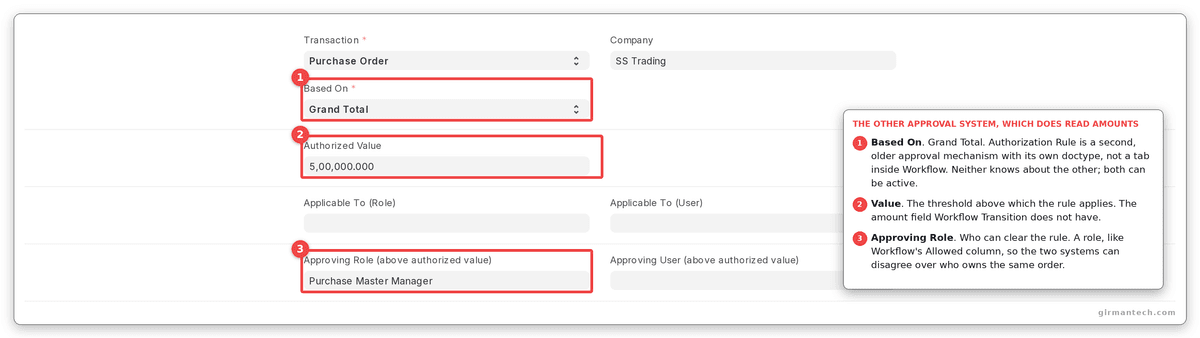
An Authorization Rule for Purchase Order with Based On set to Grand Total, the value and the approving role.
Where Approval Sits in Procure-To-Pay
Material Request → RFQ → approved PO → Purchase Receipt → Purchase Invoice → Payment Entry.
The approval is the hinge, and every step after it keys on whether the order is submitted, never on what the workflow calls it. Upstream, auto re-order raises Material Requests that convert without re-keying. Downstream, a Purchase Receipt can only come from a submitted order, and three-way matching then checks the bill against the order's rates and the receipt's quantities. Which is why the Rejected row in Step 3 matters so much: that guard is the whole of it.
ERPNext vs. SAP vs. NetSuite vs. Dynamics 365 BC vs. Odoo vs. Coupa
| Capability | ERPNext v16 | SAP S/4HANA | Oracle NetSuite | Dynamics 365 BC | Odoo | Coupa |
|---|---|---|---|---|---|---|
| Approval routing by value | Workflow condition in Python, or Authorization Rule | Release strategy with characteristics | Approval routing rules | Approval workflow | Two-step validation with a threshold | Full approval chains |
| Multi-level chains | Chain states manually | Native release codes | Native | Native | Two levels, Enterprise | Native, unlimited |
| Approval matrix UI | None: conditions are code | Configuration UI | Rule builder | Rule builder | Settings toggle | Visual builder |
| Multiple approvers per step | No: one role per transition | Yes | Yes | Yes | Limited | Yes |
| Self-approval blocked by default | No: defaults to allowed | Yes | Configurable | Configurable | Yes | Yes |
| Enforced outside the browser | No: permissions must carry it | Yes | Yes | Yes | Yes | Yes |
| Delegation / out-of-office | None | Substitution rules | Delegation | Substitutes | Limited | Native |
| Time-based escalation | None | Yes | Yes | Yes | No | Yes |
| Approve from email | Yes, signed guest links | Yes | Yes | Yes | Yes | Yes |
| Audit trail | Workflow Action records + version history | Full | Full | Full | Full | Full |
| Licensing | Open source, no per-user fee | Enterprise licence | Per-user | Per-user | Enterprise edition | Per-spend subscription |
ERPNext holds 4.5/5 across 140 reviews on Capterra and 4.5/5 across 59 reviews on Gartner Peer Insights (as at September 2026).
ERPNext will express almost any approval policy you can describe. One line of a condition beats most rule builders. What it will not do is stop anyone routing around that policy, or cover for an approver on leave.
One Honest Limitation
An ERPNext approval workflow is something the screen enforces, not something the system enforces, and it has no concept of an absent approver.
The first gap is the submit path, and the edit lock beside it. Both places ERPNext appears to restrict an order (who may move it forward, who may edit it) hold only on screen. Until you remove submit permission from the roles meant to request rather than approve, the workflow is advisory. Every ERPNext implementation we inherit has the workflow configured. A minority have the permissions tightened to match. That will not survive a competent audit.
The second is absence. No delegation, no out-of-office substitution, no escalation timer anywhere in ERPNext's workflow. When the director is on leave, somebody gives the executive that role for a week, the exact thing the control existed to prevent, with no record of why.
Dedicated procurement platforms handle this properly (delegation, absence rules, escalation timers) because they are built for purchasing rather than being general-purpose tools. If purchasing control is the main reason you are buying an ERP, a dedicated P2P tool alongside ERPNext is the honest recommendation, and we have made it.
Where ERPNext is still the right answer, we configure four things a procurement product does with one setting: submit permission restricted to approving roles, self-approval off everywhere, a scheduled report of orders pending over two days, and a named deputy per approver.
Best Practice, Corrected
Two settings every guide recommends, and describes wrongly.
Approval email needs two switches, and neither is where the guides put them. Tick Send Email Alert on the Workflow record itself, and leave Send Email On State ticked on every state that should notify. Both, or nothing sends. Those emails carry action links that work without logging in. Decide that deliberately, because the link is all that stands between a forwarded email and an approval.
Don't Override Status only changes the coloured badge on the list. ERPNext works out an order's real status from whether it is submitted and how much has been received and billed; a workflow never writes to it. That is why the rejected order in Step 3 could read Rejected and To Receive and Bill at once.
What Changes in ERPNext v16
Less than the topic deserves. It is the same machine as v15: same states, same transitions, same conditions, same self-approval default. Authorization Rule survives another version, still disconnected from Workflow. The one addition worth having is the Workflow Builder above.
We could not check v15 on this bench, so we are not claiming the bypass behaves identically there. Nothing about it reads like a recent change.
Frequently Asked Questions
What Doc Status should the Rejected state have in an ERPNext workflow? 0. A Rejected state at Doc Status 1 submits the order, and a submitted purchase order is a live commitment whatever the workflow calls it: receivable, invoiceable, booked as stock on order. Doc Status 2 is for cancelling after approval, not rejecting before it.
Can someone approve their own purchase order in ERPNext? By default, yes. Allow Self Approval ships ticked on every transition. Untick it wherever segregation of duties matters. Administrator bypasses the check regardless, and it reads who created the order, not who last edited it.
Does an ERPNext workflow actually prevent an unapproved purchase order from being submitted? Not on its own. ERPNext hides the Submit button when a workflow exists, but an order submitted by an integration, a script or a bulk action moves straight to the first state you marked as submitted: no role checked, no condition. We reproduced this on v16.25.0 with a user holding only Purchase User. Restrict submit permission to the approving roles. That is what enforces it.
What happens when a purchase approver is on leave in ERPNext? Nothing automatic. ERPNext has no delegation, out-of-office substitution or escalation timer, so a pending order sits until the approver returns or someone is handed the role. Plan a named deputy per approver and watch it with a scheduled report.

.png&w=3840&q=75)