



Payment reconciliation is the process of matching each payment your company receives or sends against the specific invoices it settles, so that the outstanding balance on every customer and supplier account reflects reality. It is a standard financial control implemented in SAP, Oracle NetSuite, Microsoft Dynamics, and ERPNext. Without it, your ageing report is fiction. You cannot tell which customers actually owe you money and which have already paid.
Most finance teams do not discover a reconciliation problem in the accounts. They discover it when a collections executive calls a customer who paid three weeks ago.
The Operational Problem
A customer sends one NEFT transfer of ₹8,42,000 against six invoices. The bank statement line says NEFT-CR-HDFC-ACME INDUSTRIES-8420 00. No invoice numbers. Nobody at the customer's end sends a remittance advice.
Your accounts team now does what most teams do: opens the ledger, eyeballs which combination of open invoices adds up to ₹8,42,000, and posts a journal entry. It works when you have forty open invoices. At four hundred it stops working, and the failure is silent. Payments sit as unallocated credits, invoices sit as overdue, the ageing report drifts from reality, and the first person to notice is the customer who gets a dunning email for an invoice they cleared last month.
The cost is rarely the accounting error itself. It is the collections effort spent chasing money you already have, and the working-capital decisions made on an ageing report nobody quite trusts.
Payment Reconciliation vs. Bank Reconciliation
These two are constantly conflated, and the distinction matters because they are different tools solving different problems.
Bank reconciliation answers: does my ledger's cash balance match what the bank says? It matches bank statement lines against vouchers already in the system.
Payment reconciliation answers: which invoices does this payment settle? It matches payment entries against open invoices for a specific party (an allocation problem, not a cash-balance problem).
A company can be perfectly bank-reconciled and still have a completely unreliable ageing report. You need both. SAP Business One draws the same line, calling the second one "Internal Reconciliation" and keeping "Bank Statement Processing" separate.
How Payment Reconciliation Works in ERPNext
ERPNext ships both tools. Here is the payment-to-invoice side.
Step 1: Open the Payment Reconciliation Tool
Go to Accounting > Payment Reconciliation. It is a single-use tool, not a stored document. Nothing is saved until you reconcile.
Set the mandatory filters:
- Company
- Party Type: Customer or Supplier
- Party: the specific customer or supplier
- Receivable / Payable Account: usually Debtors or Creditors
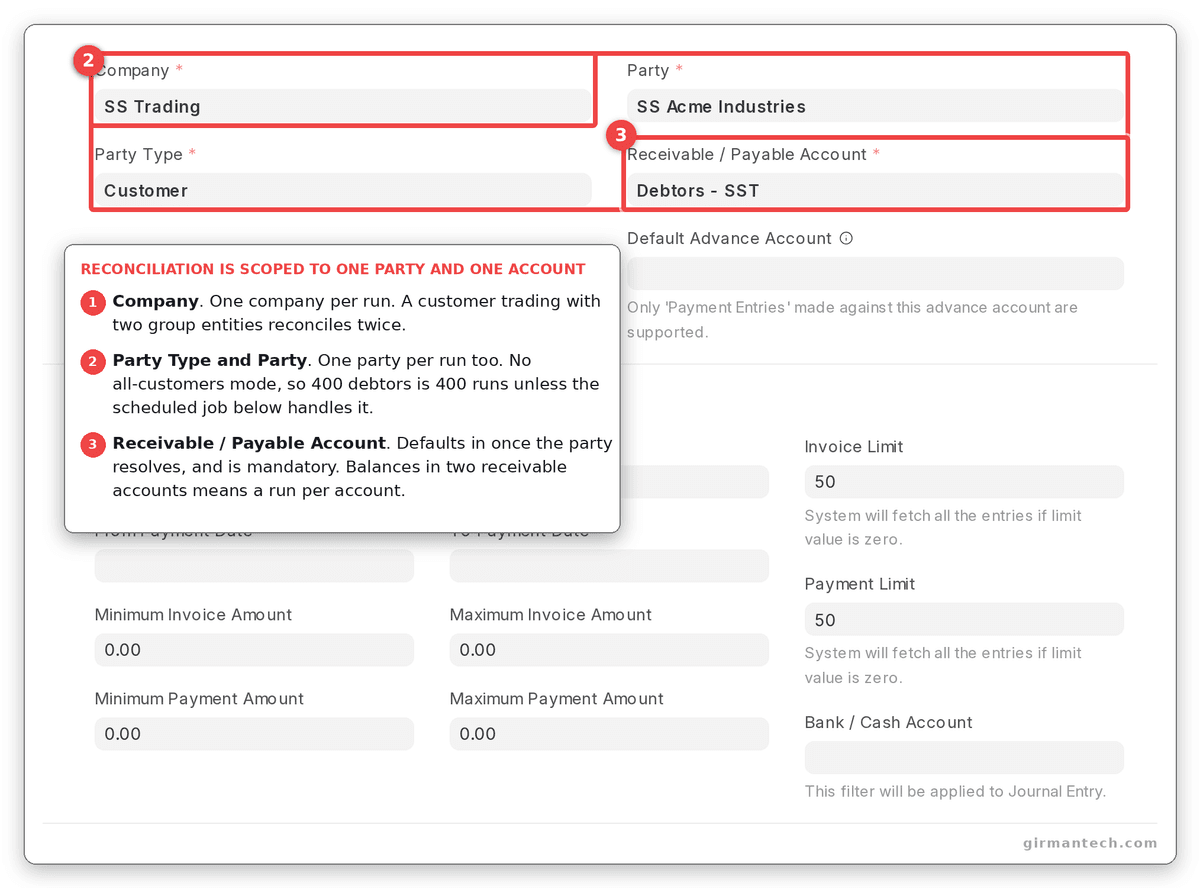
Payment Reconciliation form with Company, Party Type, Party and Receivable/Payable Account filled in.
Step 2: Narrow the Search Before Fetching
This is the step most teams skip, and it is the difference between the tool being useful and being unusable.
The optional filters are Bank / Cash Account, From / To Invoice Date, From / To Payment Date, Minimum / Maximum Invoice Amount, Minimum / Maximum Payment Amount, Cost Center, Project, and free-text Filter on Invoice / Filter on Payment fields.
Note the Invoice Limit and Payment Limit fields, both defaulting to 50. The system only pulls 50 invoices and 50 payments unless you change this. Setting them to 0 fetches everything, which on a ledger with 1,500 open documents is exactly how you make the tool hang. Filter by date range and amount band instead.
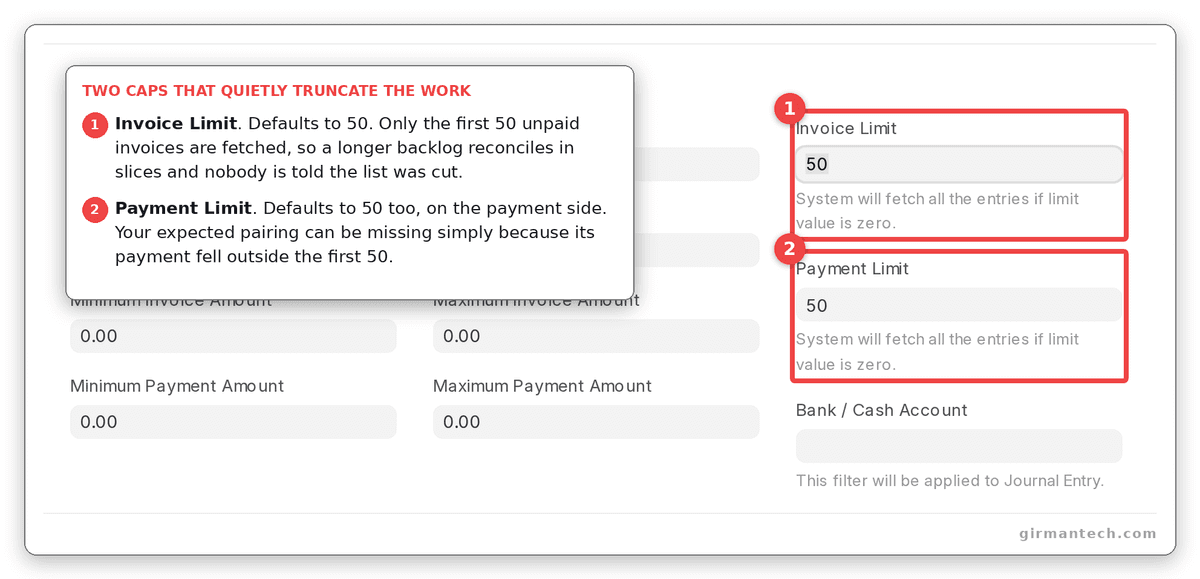
The filter section expanded, showing Invoice Limit and Payment Limit set to 50.
Step 3: Get Unreconciled Entries
Click Get Unreconciled Entries. Two tables populate: unallocated payments and outstanding invoices.
Step 4: Allocate
Click Allocate. ERPNext proposes allocations into the Allocation table, applying payments against invoices in order. Each row carries an Allocated Amount you can edit. This is where you handle a payment that settles four invoices fully and a fifth partially.
Two fields on this table are widely misread:
- Difference Amount is exchange-rate difference only. It is calculated when the invoice and the payment carry different exchange rates, and it is zero for domestic transactions. It is not a tolerance or rounding bucket.
- Difference Account is read-only and auto-set to the company's Exchange Gain/Loss Account. On reconcile, ERPNext posts a system-generated Journal Entry for that difference.
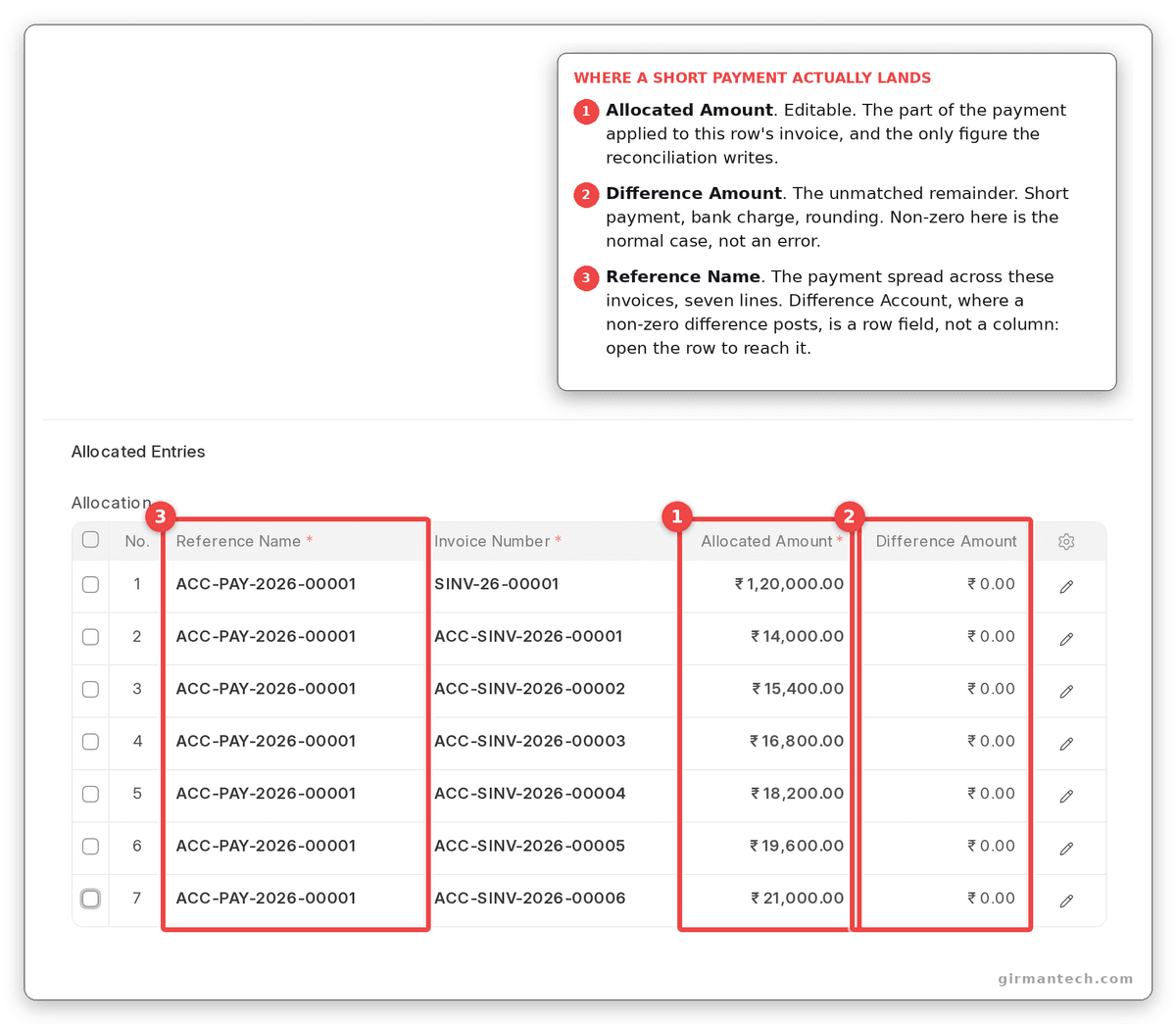
Allocation table with the Allocated Amount and Difference Amount columns. Difference Account is a field on the row, not one of the grid's columns. You have to open a row to reach it.
Step 5: Reconcile
Click Reconcile. Invoice outstanding amounts update, and the payments are linked to the invoices they settle.
Important: ERPNext's allocation tolerance is 0.009. If you try to allocate even one rupee more than an invoice's outstanding amount, it throws an error rather than writing off the difference. Short payments and cash discounts are handled upstream, on the Payment Entry itself: the Write Off Difference Amount button, which posts to the Payment Deductions or Loss table.
Step 6: Automate It
For recurring reconciliation, ERPNext has a background job. In Accounts Settings, enable Auto Reconcile Payments, then set Auto Reconciliation Job Trigger (in minutes, 1-59, default 15) and Reconciliation Queue Size (5-100, default 5).
You then create Process Payment Reconciliation documents (one per party/account combination) and submit them. They sit in Queued status; the scheduler picks them up, fetches, allocates and reconciles in the background, and logs the result to Process Payment Reconciliation Log.
If a reconciliation is wrong, the Unreconcile Payment DocType unlinks the allocation cleanly. You do not cancel and re-post.
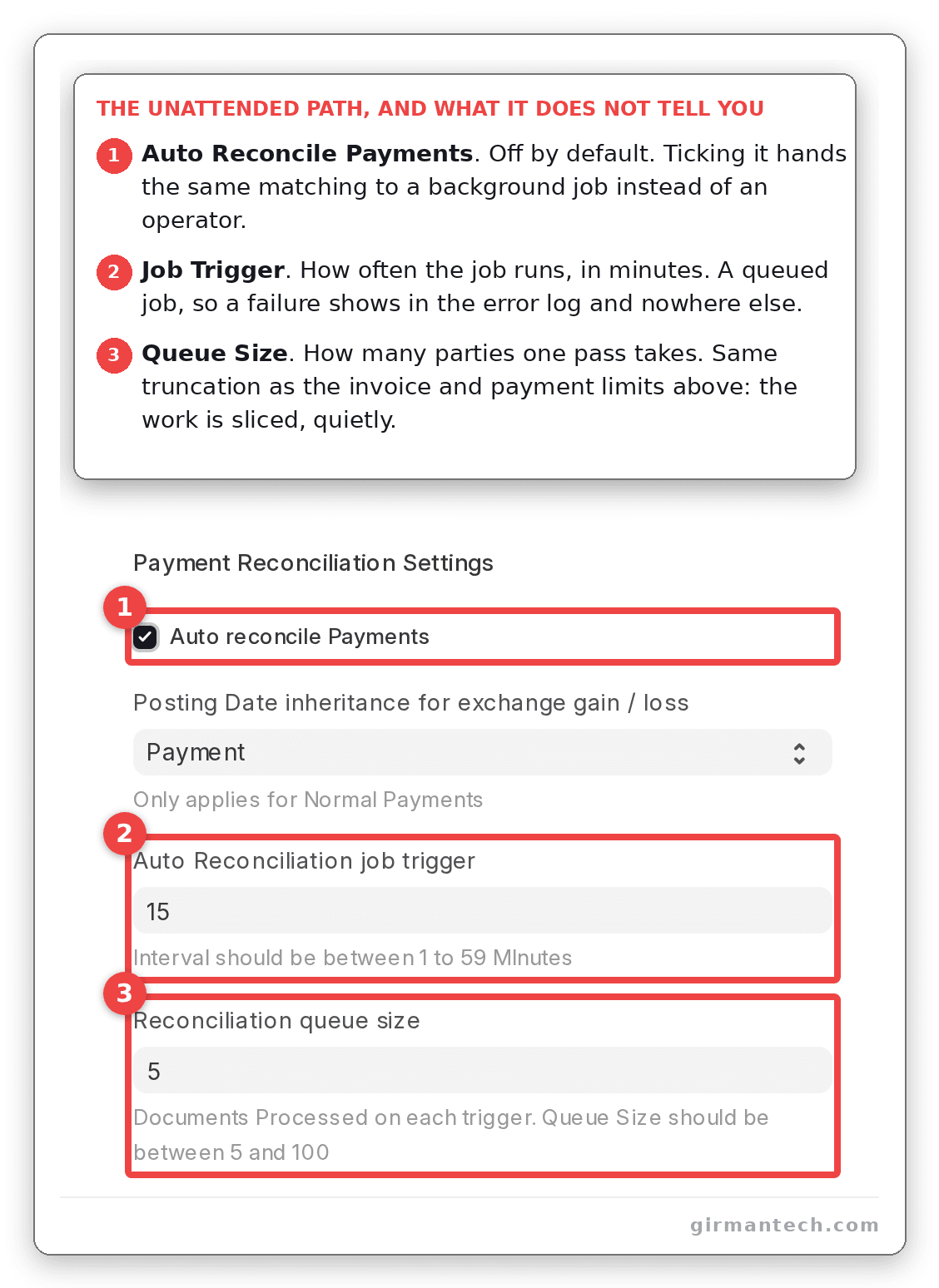
Accounts Settings showing Auto Reconcile Payments enabled with job trigger and queue size.
The Bank Side: Bank Reconciliation Tool
Go to Accounting > Bank Reconciliation Tool. Set Company, Bank Account, and the statement date range, and enter the Closing Balance from your statement.
Bank statement lines enter the system as Bank Transaction records, imported via Bank Statement Import, which is Frappe's Data Import engine pointed at the Bank Transaction DocType. Column mapping is configured once per bank, on the Bank record's Bank Transaction Mapping table. If your bank is supported by Plaid, Plaid Settings can sync automatically every hour.
For each unmatched line, ERPNext ranks candidate vouchers using a deterministic score: one point each for a matching reference number, an exactly matching amount, and a matching party. You then choose one of three actions: Match Against Voucher, Create Voucher, or Update Bank Transaction. Reconciling stamps a Clearance Date on the matched voucher.
Two things worth correcting, because the official ERPNext documentation is out of date here:
- The matchable document types are Payment Entry, Journal Entry, Sales Invoice, Purchase Invoice, and Bank Transaction itself, for inter-account transfers. Expense Claim is listed in the docs but is not supported. Loan Repayment moved out of core into the separate
lendingapp. - Two matching aids exist in Accounts Settings and are off by default: Enable Automatic Party Matching and Enable Fuzzy Matching. Most teams never turn them on and conclude the tool cannot infer parties from statement descriptions. It can.
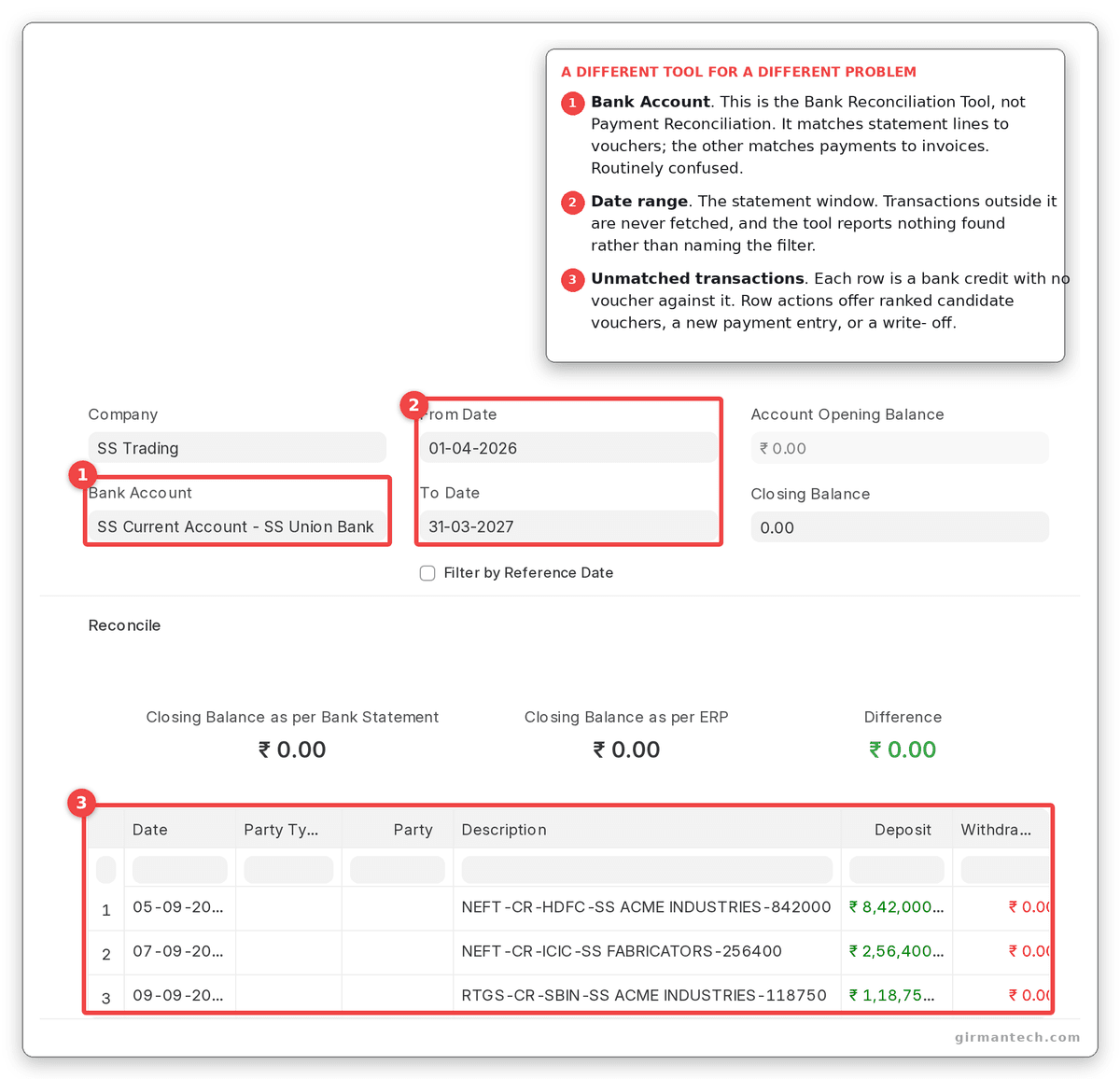
Bank Reconciliation Tool showing an unmatched transaction with ranked voucher suggestions.
ERPNext vs. SAP Business One vs. Odoo vs. NetSuite
| Capability | ERPNext | SAP Business One | Odoo | Oracle NetSuite |
|---|---|---|---|---|
| Invoice-to-payment allocation | Payment Reconciliation tool | Internal Reconciliation (manual / semi-automatic / automatic) | Reconciliation Models | Match Bank Data / Reconcile Account Statement |
| Automated background reconciliation | Process Payment Reconciliation (scheduled, configurable interval) | Automatic mode with user-defined priorities | Auto-validate on reconciliation models | Intelligent Transaction Matching + auto-create rules |
| Matching logic | Rule-based ranking; rules engine added in v16 | Rule-based, user-defined parameters | Rule-based + regex on statement labels | Rule-based (despite the "intelligent" naming) |
| Underpayment / cash-discount tolerance | No tolerance in the tool; write-off handled on Payment Entry | Partial reconciliation supported | Payment tolerance field (underpayment only) | Supported via rules |
| Automated bank feeds | Plaid, plus CSV/Excel/Google Sheets import | Bank Statement Processing | 26,000+ institutions (requires Enterprise subscription) | Bank Feeds SuiteApp |
| Licensing model | Open source; hosting from ~$5/month, no per-user fee | Per-user licence, not publicly listed | From $24.90/user/month (annual) | Per-user, not publicly listed |
ERPNext holds 4.5/5 across 140 reviews on Capterra and 4.5/5 across 59 reviews on Gartner Peer Insights (as at September 2026).
One Honest Limitation
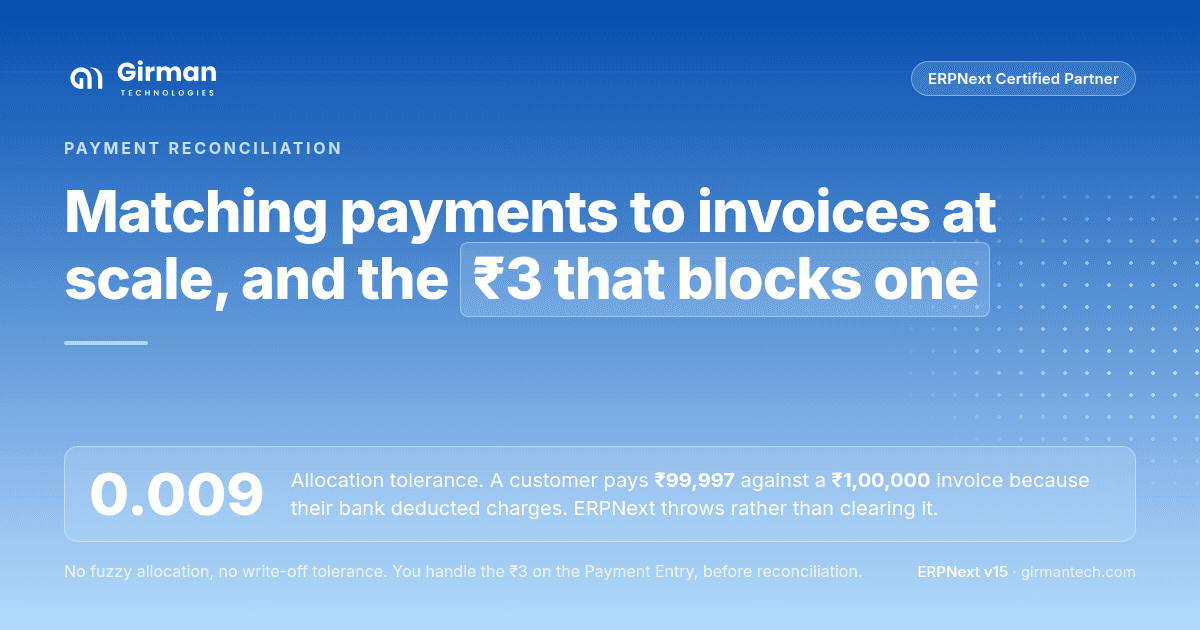
ERPNext's Payment Reconciliation tool has no fuzzy allocation and no write-off tolerance. If a customer pays ₹99,997 against a ₹1,00,000 invoice because their bank deducted charges, the tool will not clear that invoice. It throws an error above a 0.009 tolerance. You handle the ₹3 on the Payment Entry, before you ever reach reconciliation.
A configurable payment tolerance is the cleaner answer to this, and ERPNext does not have one. If your business routinely absorbs small short-payments (export customers paying net of intermediary bank charges, for instance), build the deduction into your Payment Entry workflow from day one rather than discovering it during month-end close.
The second constraint is volume. The 50-record default fetch limit exists for a reason: the tool loads candidates into a form. Teams with 1,000+ open documents per party need the scheduled Process Payment Reconciliation job and tight filters, not the interactive screen. Plan for that in the design, not after go-live.
What Changes in ERPNext v16
Version 16 adds a Bank Transaction Rule DocType: priority-ordered rules matching on transaction type, amount range and description patterns, which classify a bank line and assign the account and party automatically. Accompanying settings run the rules hourly against unreconciled transactions, and a transfer-matching window (default 3 days) catches movements between your own bank accounts.
This is ERPNext's structural answer to Odoo's Reconciliation Models. It is rule-based, not AI (which, for an audit trail, is the correct design).
Frequently Asked Questions
Does ERPNext support automatic payment reconciliation? Yes. Enable Auto Reconcile Payments in Accounts Settings, then create and submit Process Payment Reconciliation documents. A background job processes the queue at a configurable interval between 1 and 59 minutes.
What is the difference between the Payment Reconciliation and Bank Reconciliation tools in ERPNext? Payment Reconciliation matches payments to open invoices for a party, correcting your ageing report. Bank Reconciliation matches bank statement lines to vouchers in your ledger, correcting your cash balance. They are separate tools and you need both.
Can ERPNext import bank statements automatically? Yes, through Bank Statement Import for CSV, Excel and Google Sheets files, with column mapping configured once per bank. Automated feeds are available via Plaid for supported institutions.
How do I undo a payment reconciliation in ERPNext? Use the Unreconcile Payment DocType. Select the voucher, fetch its allocations, and submit. This unlinks the allocation without cancelling the underlying payment or invoice.
How many invoices can ERPNext reconcile at once? The interactive tool defaults to 50 invoices and 50 payments per fetch, configurable via the Invoice Limit and Payment Limit fields. For higher volumes, use the scheduled Process Payment Reconciliation job with a queue size between 5 and 100.

.png&w=3840&q=75)
3d3fb9.png&w=3840&q=75)
.png&w=3840&q=75)