



.png&w=3840&q=75)
How We Rebuilt A2 Enterprise's Custom POS on Top of ERPNext, Without Changing a Single Core Line
A custom point of sale screen for a 25 branch aluminum and glass supplier in Ghana, built on top of ERPNext, not inside it.
A screen that almost fit
ERPNext ships with a point of sale screen, and for most shops it's enough: pick a customer, pick items, take the money, print.
A2 Enterprise, a Kumasi headquartered supplier of aluminum profiles and glass, operating 25 branches across Ghana, needed more. Four different kinds of sales happen at the same counter. Sometimes a customer just buys. Sometimes a price gets negotiated and a manager has to sign off on it. Sometimes the customer only wants a written price to think over. Sometimes they want a committed price, on paper, to come back for later.
The stock POS screen handles one of those four. The other three were being done by hand, outside the system, after the fact.
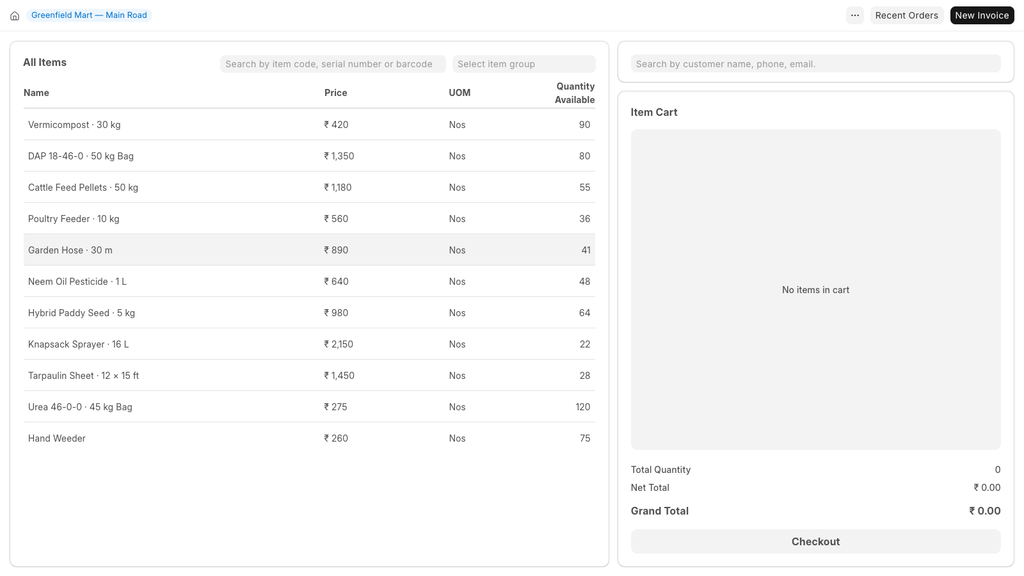 The stock screen. Good, fast, and built for one kind of sale.
The obvious next step is to customize. ERPNext is famously flexible from the browser: add fields, hide fields, rename things, attach small scripts. What you can't do from there is change how a screen behaves, add a row of buttons that decides what kind of document a sale becomes, put a discount box on every line of the cart, or stop a cashier from completing a sale until a manager approves the price.
That usually leaves two options: live with the gap, or fork ERPNext and pay for that fork at every upgrade.
We took a third path
We built a custom app with its own POS screen, sitting on top of ERPNext's POS rather than inside it, extending it without modifying ERPNext core. It inherits everything the stock screen already does (opening and closing the till, printing, offline behavior) and overrides only the handful of things A2 Enterprise's counters actually needed to be different.
Zero lines changed in ERPNext or Frappe core. The stock POS is still there, untouched, one click away. Upgrades stay boring, which is exactly what you want from an ERPNext upgrade.
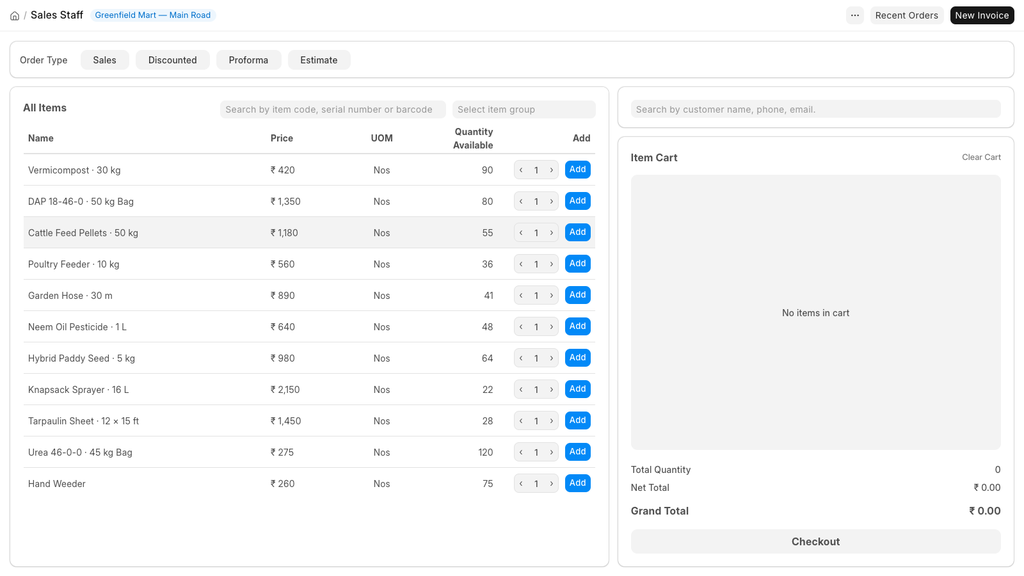 The same POS, plus one row at the top. That row is the whole idea.
The cashier picks the sale type first
Four buttons, chosen before anything else happens:
- Sales, a normal sale at system price. No discounts, by anyone.
- Discounted, a negotiated price. Goes nowhere until a branch manager approves it, through a dedicated approval workflow built into the same screen.
- Proforma, a committed price the customer takes away and returns for later.
- Estimate, a price to think about, with no commitment on either side.
Each button creates a different underlying document, with different rules on what the cashier can touch. The cashier doesn't need to know any of that, they just press a button.
Built for speed at the counter
Items are listed with a quantity box and an Add button on every row: type the number, hit Add, move to the next item. No hunting through tiles, no separate panel just to change a quantity.
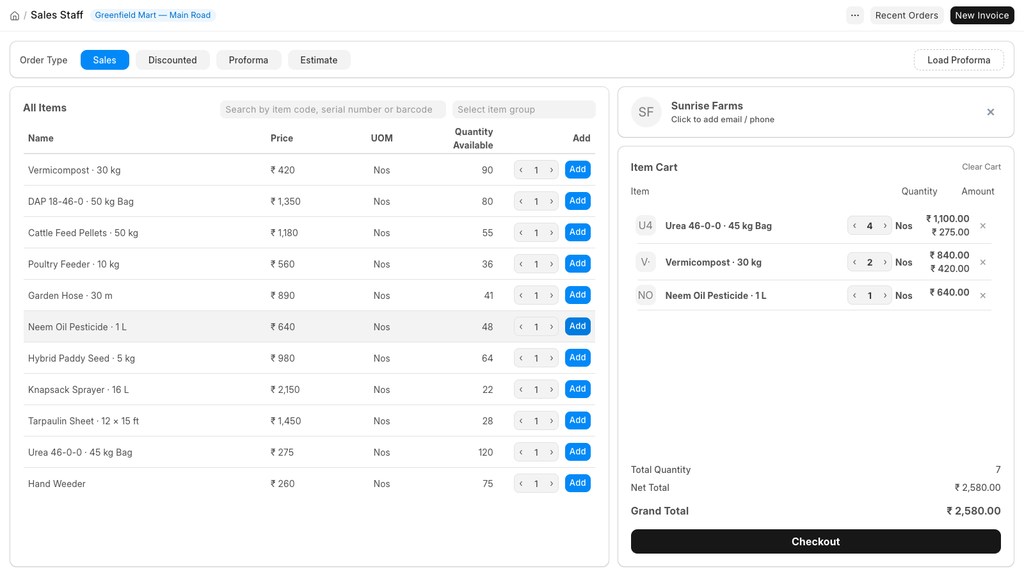 Type a quantity, press Add, move on.
Payment supports splitting across multiple tenders, with a numpad that takes the largest digits first, the way someone actually says an amount out loud. Part payments show the remaining balance in red, with no manual arithmetic.
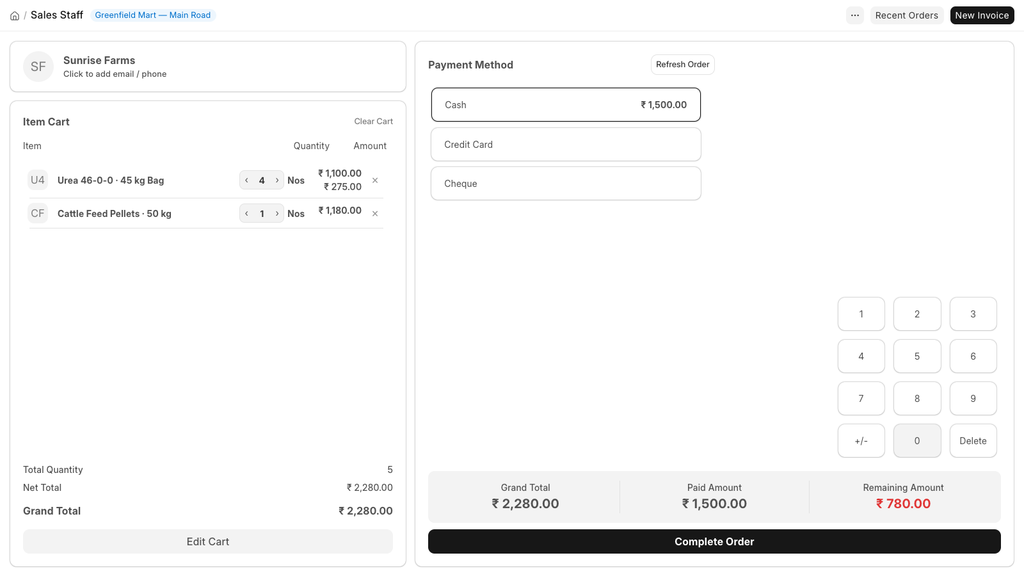 1,500 in cash against a total of 2,280. The 780 still owed is shown on screen, in red.
A price that someone actually agreed to
On a Discounted order, every line carries its own discount box, and any system generated offer for that item shows up right beside it, so the cashier can see exactly which discount is applied and swap it if needed.
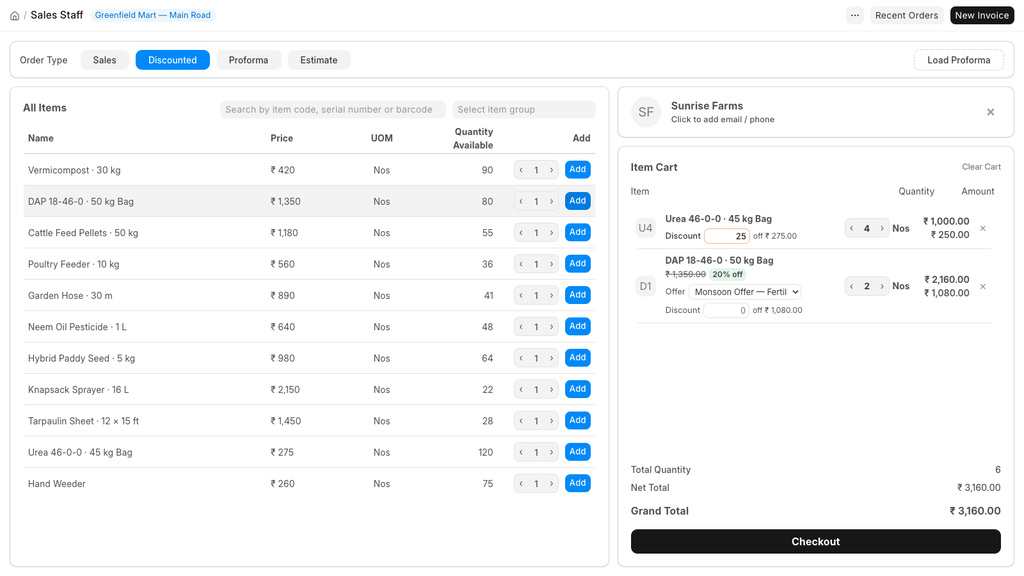 25 off a bag of urea, with a nearby item already carrying an automatic Monsoon Offer discount.
The order then parks for a branch manager to review, approve or reject, nothing in between. Approved orders freeze immediately so nothing can quietly change after the yes; rejected ones are closed out entirely rather than being reopened and edited.
Two smaller additions came out of the same approval workflow:
- A live "waiting for manager's approval" indicator on the checkout screen, so cashiers always know an order's status instead of guessing.
- A Refresh Order button, so if a manager acts on an order in the backend, the cashier's screen can pull the update in place, instead of the old flow, where any backend change forced a full page reload and lost whatever progress was on screen.
The customer who comes back holding a paper
A proforma is a real, committed price. When the customer returns, the cashier searches for it by number or customer name, loads it into the cart, and the sale completes at the proforma's original prices, even if the price list has moved since.
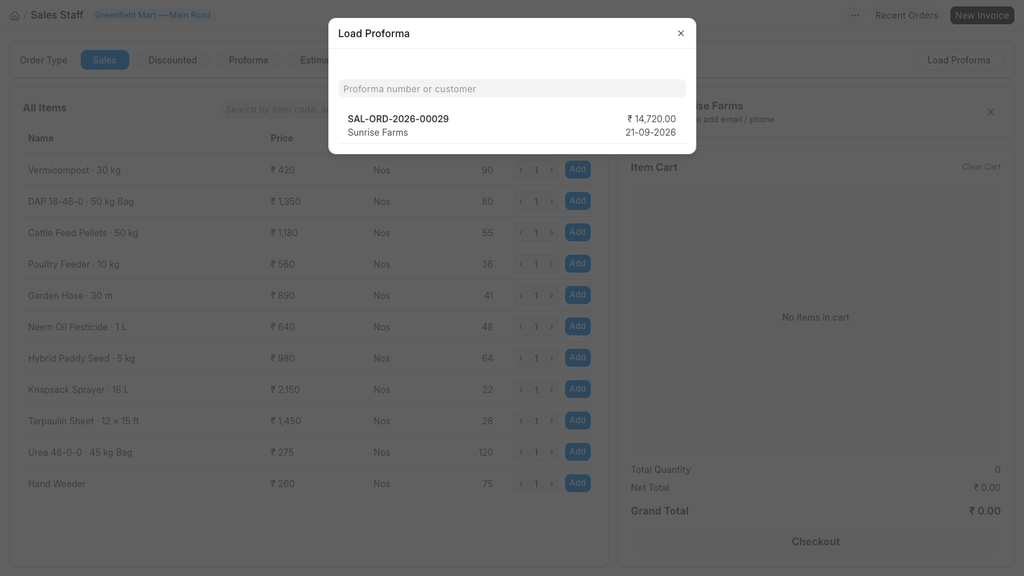 The proforma, found by number or by customer, loaded into the cart at its own rates.
An estimate is the softer version: a written price with no commitment attached. Because both proformas and estimates are finalized the moment they're created, the screen confirms the customer and total before submitting, one question before something becomes permanent.
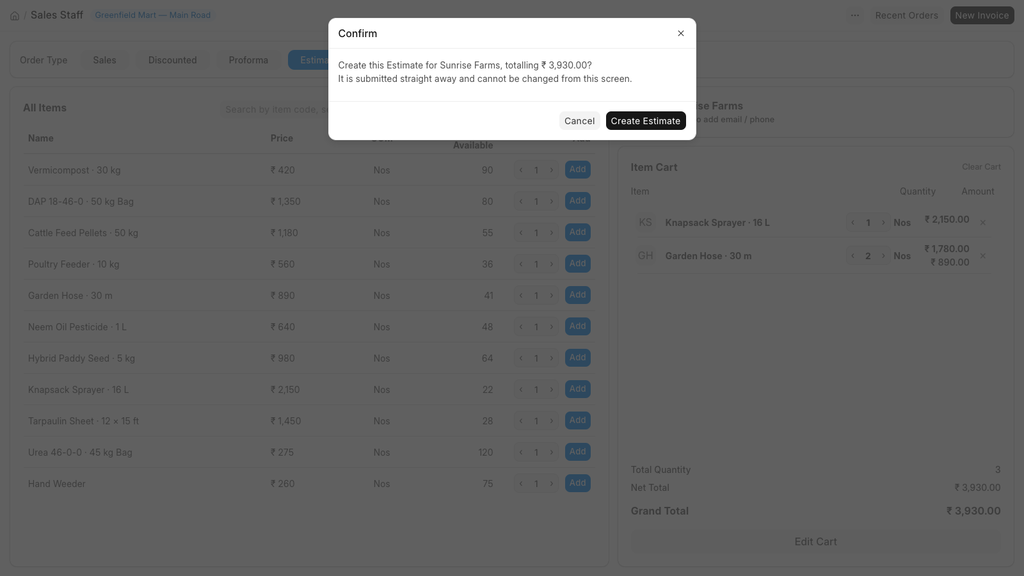 One question before something becomes permanent.
The best reviewer was the counter
The most useful day of the project was the one where cashiers actually used the screen for real. Six pieces of feedback came back. Five changed something we'd already built and were fairly happy with.
The sharpest one: the approval flow originally let a manager approve a discount but still edit the items and quantities while reviewing it, with no way to say no outright. An unticked box looks identical to a box nobody has looked at yet. That became a hard approve or reject gate, with no in between and no way to alter the order after approval.
We wouldn't have caught that in a planning meeting. We caught it because someone stood at a counter and tried to sell something.
Where things stand
This is the first phase of a longer ERPNext rollout for A2 Enterprise, inter branch stock transfer approvals are the next piece on the list. A2's projects run on an ongoing basis, with no fixed end date; this phase of the POS work came together over six weeks, with AI doing most of the typing:
- Capability modules: 14
- Written specs: 17
- Automated tests: 13 browser suites, 12 server suites
- Lines of custom code: approximately 20,000
- Lines changed in ERPNext or Frappe core: 0
Every piece of the screen started as a short written spec, what it's for, what it must not break, how we'd know it works, before any code was written. Each piece was built as a thin slice that ran end to end: button, screen, server, document, test. Claude Code wrote the specs, the code, and the tests, ran them against the real site, and cleaned up every artifact it created along the way.
Early results are encouraging: checkout at the counter is running an estimated 20 to 30 percent faster, mainly from fewer steps to add items and the extra manual quantity screen being removed. It's an early read, not a measured benchmark yet, but it lines up with what the change was meant to do.
Four takeaways for anyone customizing ERPNext
- Customize beside the product, not inside it. Everything here extends ERPNext's own POS without touching core. That single decision is why upgrades stay safe.
- Ship in thin slices, not phases. A slice that works end to end, button to database, teaches you more in an afternoon than a month of design docs.
- Let the counter review it. Most of the real improvements came from one day of live use, not from planning sessions.
- Write the spec before the code. With AI doing the typing, the spec is now the cheapest part of the project, and the part that actually matters most.
Built on ERPNext and the Frappe Framework, as a custom app sitting alongside it. No core files were modified.
Related reading
Curious how we approach ERPNext customization more broadly? Read how Girman Tech extends ERPNext without forking core for more on our approach to upgrade safe custom development.